FAQ Management
Create and manage frequently asked questions to help your website visitors find answers quickly and efficiently
Overview
The FAQ Management system allows you to organize and display frequently asked questions on your website. You can create categories to organize questions by topic, write detailed answers, and control the visibility and order of your FAQs to provide excellent customer support.
Key Benefits
- Reduce Support Load: Answer common questions before customers need to contact you
- Improve User Experience: Help visitors find information quickly
- SEO Benefits: FAQ content can improve search engine visibility
- Organized Content: Categorize questions for easy navigation
Managing FAQ Categories
Access Categories Tab
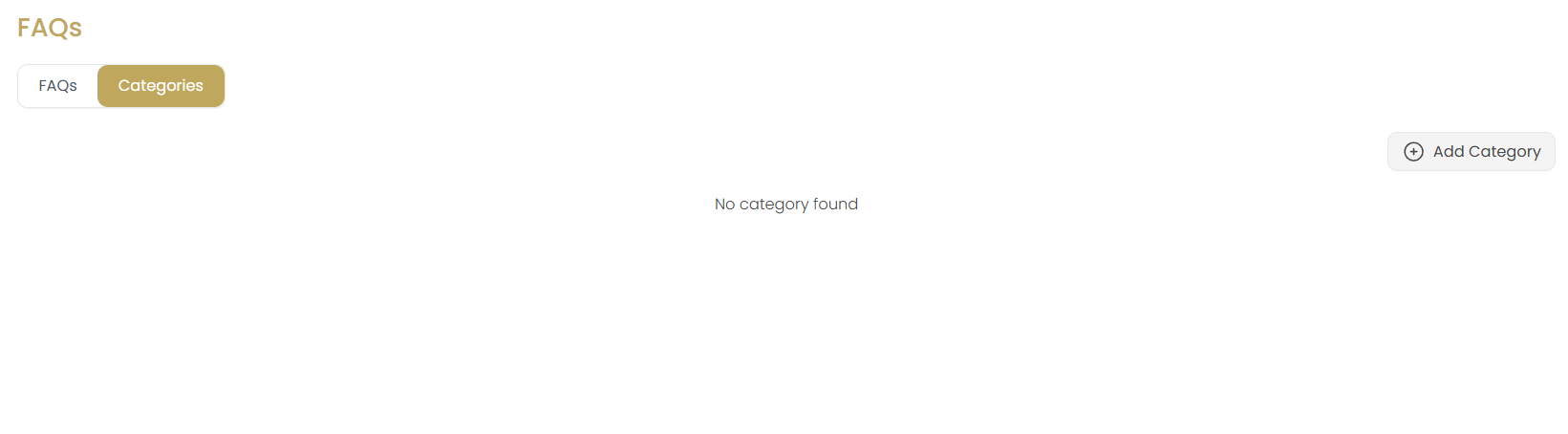
Click the Categories tab to manage FAQ categories. Categories help organize your questions by topic or theme.
Create New Category
Click the Add Category button to create a new FAQ category. This opens the Create Category dialog.
Fill Category Information
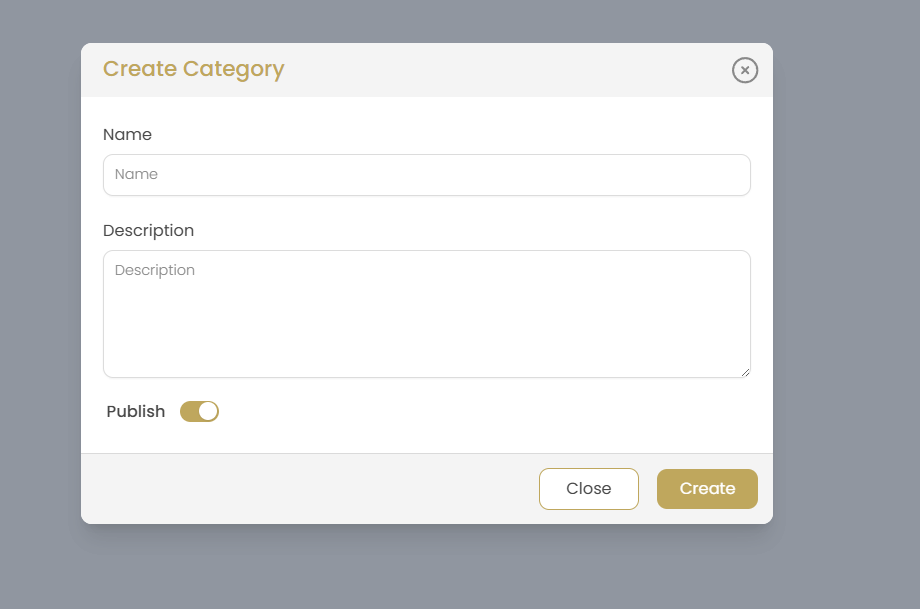
In the Create Category dialog, provide the following information:
- Name: Enter a clear, descriptive category name (e.g., "General", "Technical Support", "Billing")
- Description: Write a brief description explaining what types of questions belong in this category
- Publish Toggle: Enable to make the category visible on your website immediately
Save Category
Click Create to save the category or Close to cancel without saving.
Creating FAQ Entries
Return to FAQs Tab
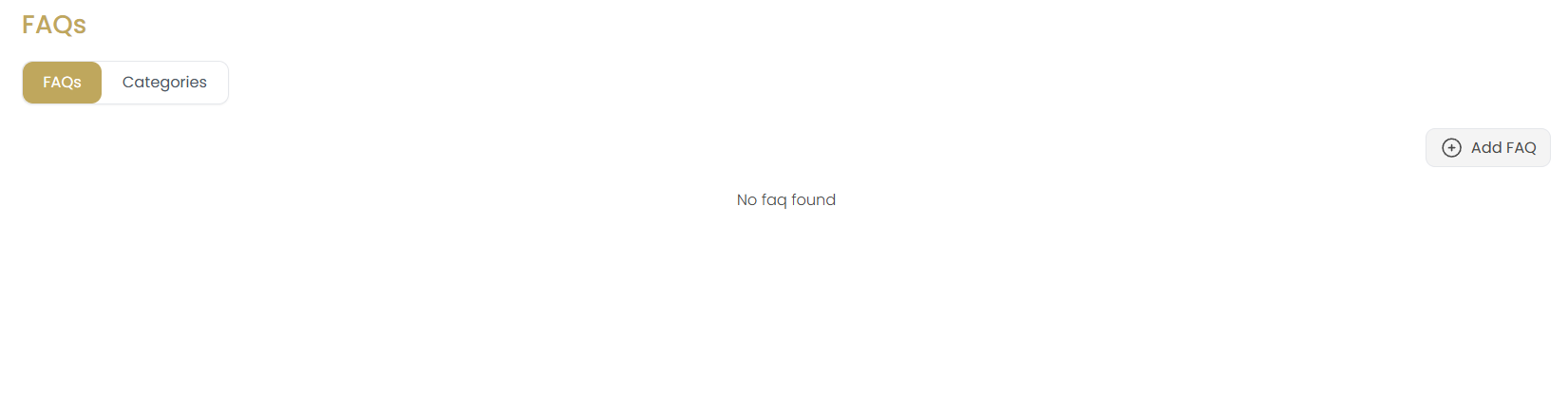
Click the FAQs tab to manage individual FAQ entries. This is where you'll create and edit your questions and answers.
Add New FAQ
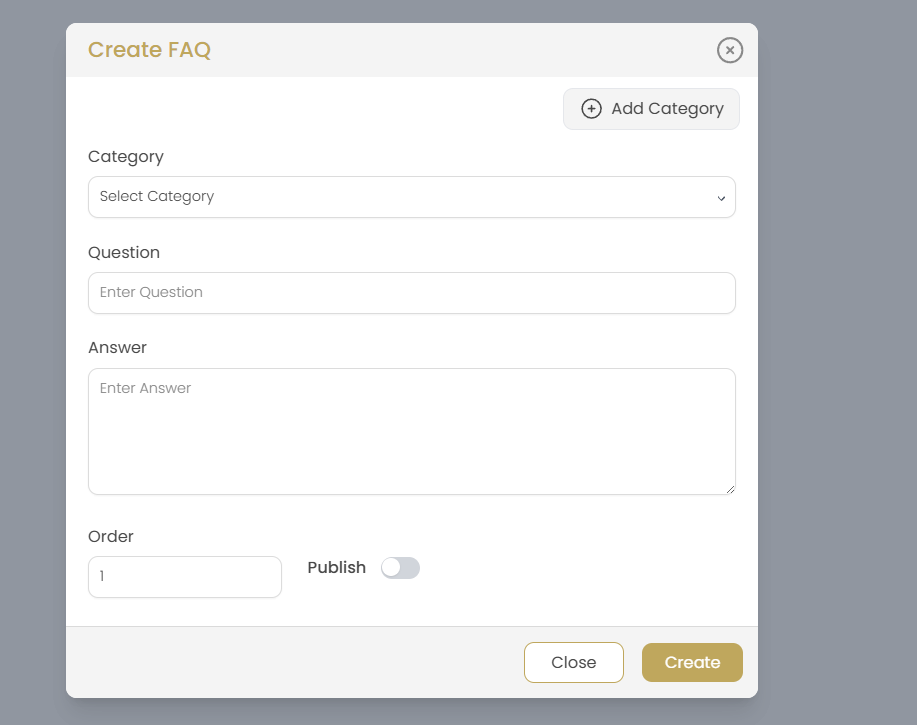
Click the Add FAQ button to create a new frequently asked question. This opens the Create FAQ dialog.
Select Category
Choose the appropriate category from the dropdown menu:
- Select from previously created categories
- Click Add Category to create a new category on the fly
- Categories help organize your FAQs for better user navigation
Write the Question
Enter a clear, concise question in the Question field:
- Use language your customers would use when searching
- Be specific and direct
- Consider common variations of the same question
- Keep questions focused on a single topic
Provide Detailed Answer
Write a comprehensive answer in the Answer field:
- Be thorough but concise
- Use clear, easy-to-understand language
- Include step-by-step instructions when applicable
- Add links to relevant pages or resources
- Consider formatting for better readability
Set Display Order
Enter a number in the Order field to control where this FAQ appears:
- Lower numbers appear first
- Use increments of 10 (10, 20, 30) to allow easy reordering
- Most important questions should have lower order numbers
Publishing Options
Use the Publish toggle to control visibility:
- Enabled: FAQ will be visible on your website
- Disabled: FAQ is saved as draft and not displayed
- You can change this setting anytime after creation
Save FAQ
Click Create to save the FAQ or Close to cancel without saving.
Editing Existing FAQs
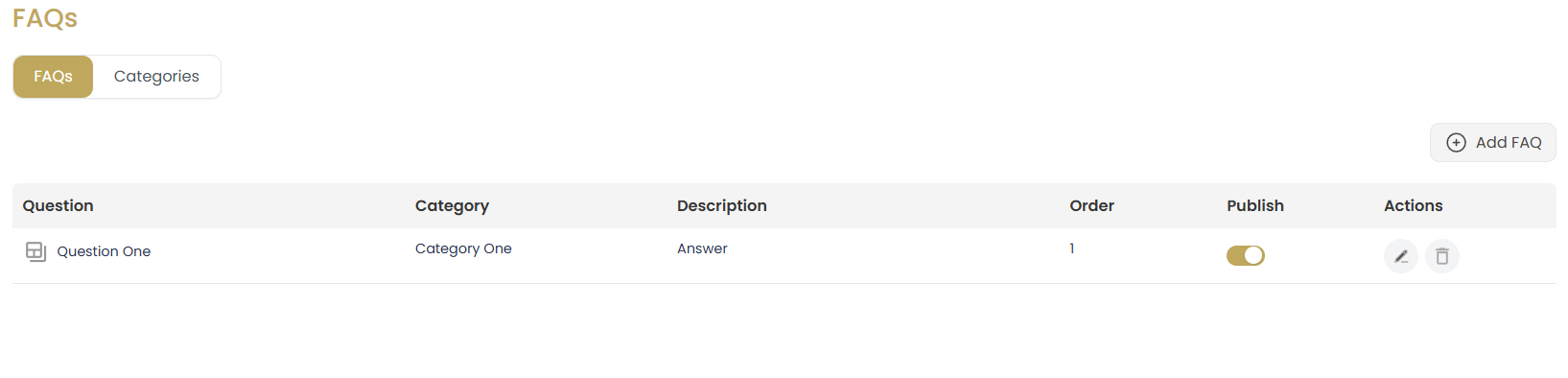
View FAQ List
The FAQ list displays all your questions with the following information:
- Question: The FAQ question with an expand/collapse icon
- Category: Which category the FAQ belongs to
- Description: Brief preview of the answer
- Order: Display order number
- Publish: Toggle switch for visibility
- Actions: Edit and delete buttons
Edit FAQ
Click the edit icon (pencil) to modify an existing FAQ. This opens the Update FAQ dialog with the current information pre-filled.
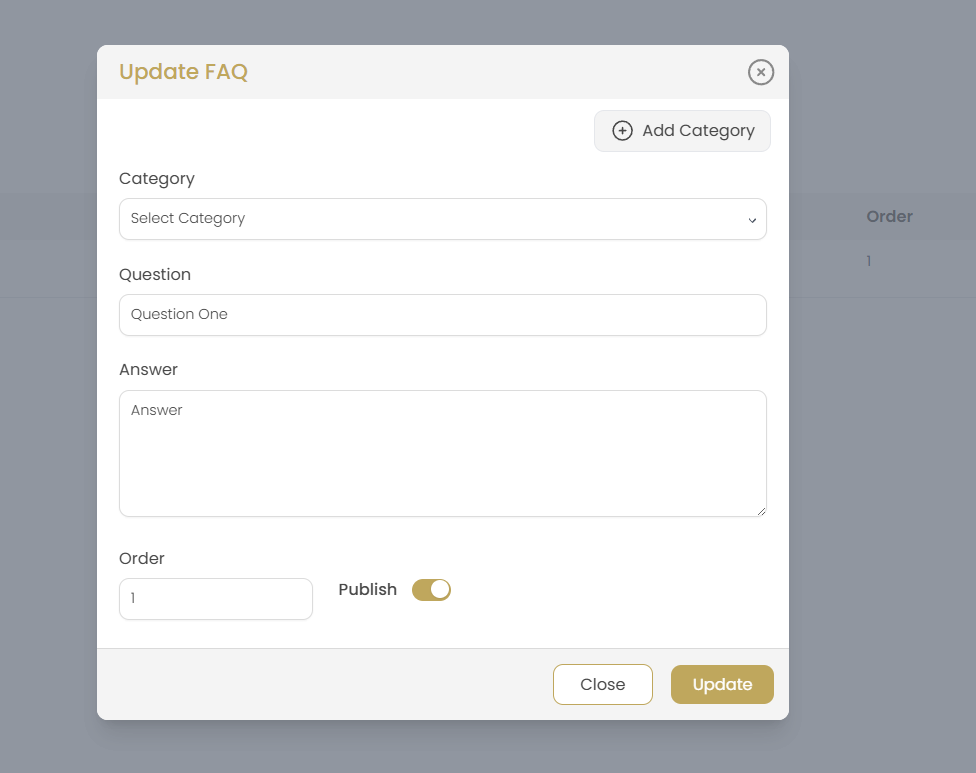
Modify FAQ Details
In the Update FAQ dialog, you can change:
- Category assignment
- Question text
- Answer content
- Display order
- Publish status
Save Changes
Click Update to save changes or Close to cancel without saving.
Quick Publish Toggle
You can also quickly enable/disable FAQ visibility using the toggle switch in the main list without opening the edit dialog.
Delete FAQ
Click the delete icon (trash can) to remove an FAQ permanently. This action cannot be undone, so use with caution.
FAQ Best Practices
Content Strategy
Create effective FAQ content:
- Customer-Focused: Use language your customers use, not internal jargon
- Search-Friendly: Include keywords customers might search for
- Comprehensive: Cover all aspects of common questions
- Current: Keep information up-to-date with policy changes
- Actionable: Provide clear next steps when applicable
Organization Tips
Structure your FAQs effectively:
- Logical Categories: Group related questions together
- Priority Ordering: Put most important questions first
- Easy Navigation: Use clear category names
- Reasonable Length: Don't overwhelm with too many questions
Real Estate FAQ Categories
Suggested categories for real estate professionals:
- Home Buying Process: Questions about purchasing property
- Home Selling Process: Questions about listing and selling
- Market Information: Local market trends and statistics
- Financing & Mortgages: Loan and financing questions
- Legal & Contracts: Contract and legal process questions
- Property Maintenance: Home maintenance and improvement
- Our Services: Questions about your specific services
Common Real Estate Questions
Examples of frequently asked questions:
- "How long does it take to sell a house?"
- "What documents do I need to buy a home?"
- "How is the listing price determined?"
- "What are closing costs?"
- "Do I need a home inspection?"
- "How do I prepare my home for sale?"
- "What is your commission structure?"
Troubleshooting
FAQ Not Appearing on Website
Solution: Check that both the FAQ and its category have the Publish toggle enabled. Also verify that the FAQ category is properly assigned.
Questions Appearing in Wrong Order
Solution: Review the Order field values. Lower numbers appear first. Use increments of 10 (10, 20, 30) to make reordering easier.
Cannot Create New Category
Solution: Ensure you have the necessary permissions to create categories. Check that the category name is unique and not already in use.
Long Answers Not Displaying Properly
Solution: Use proper formatting in your answers. Break long answers into paragraphs and use bullet points for better readability.
Changes Not Saving
Solution: Ensure all required fields are completed before saving. Check your internet connection and try refreshing the page if issues persist.