Page Editor
Create and customize your website pages with powerful editing tools and SEO optimization
Overview
The Page Editor is your comprehensive tool for creating and customizing website pages. It provides a user-friendly interface to edit page content, configure SEO settings, manage URLs, and add dynamic sections to enhance your website's functionality and search engine visibility.
Key Features
- Visual page editing with live preview
- SEO optimization tools and meta data management
- Dynamic section management (listings, search forms, etc.)
- URL customization and community page integration
- Mobile-responsive design tools
Pages Management
The Pages section provides an overview of all your website pages and their management options:
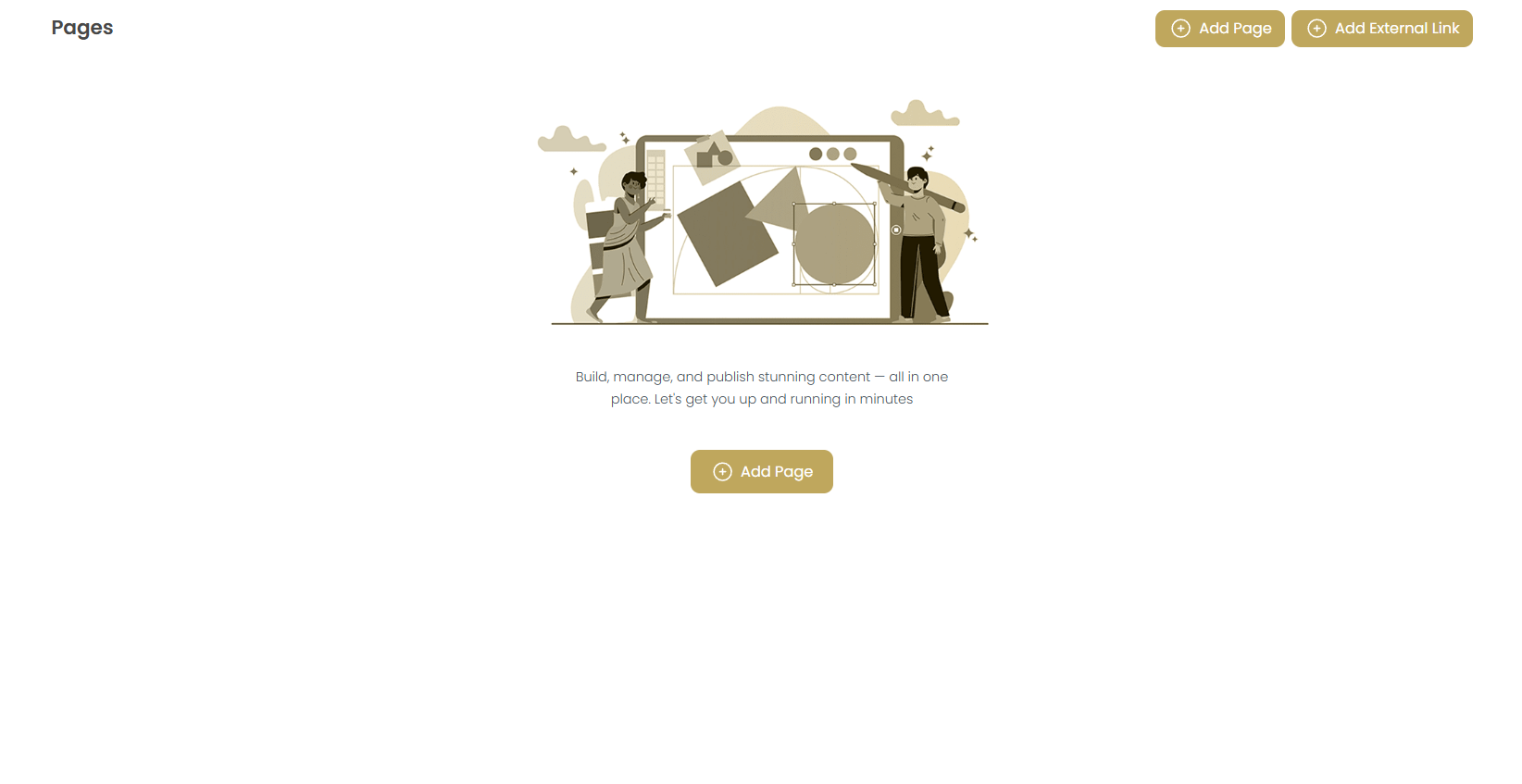
Getting Started
When you first access the Pages section, you'll see a clean interface encouraging content creation with the message: "Build, manage, and publish stunning content — all in one place. Let's get you up and running in minutes"
Quick Start: Click the "Add Page" button to create your first page and begin building your website structure.
Page Management Interface
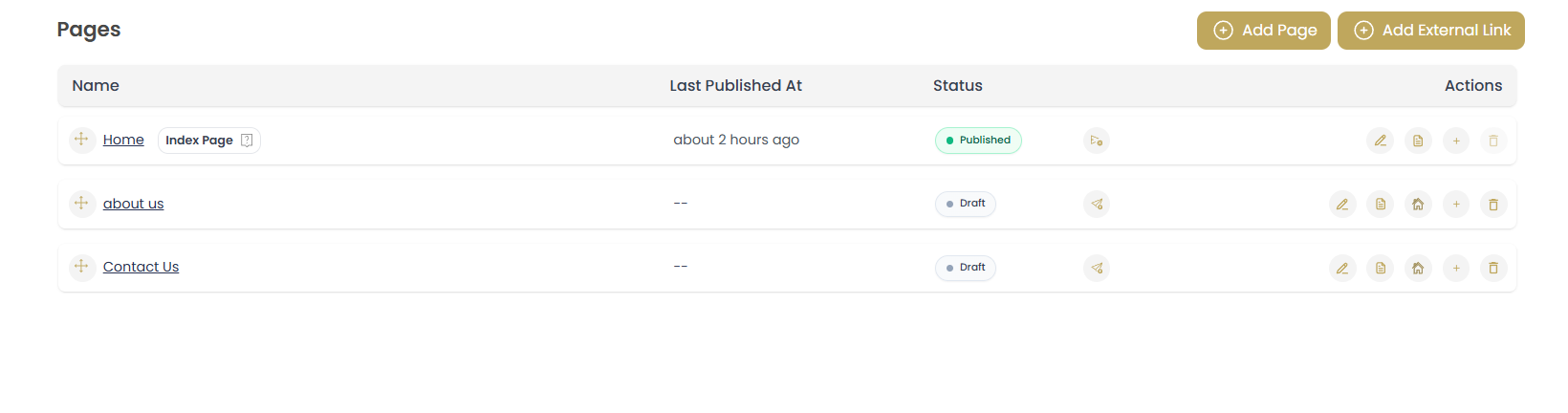
Once you have pages created, the interface displays a comprehensive table with the following columns:
- Name: The page title with a small page icon indicator
- Last Published At: Shows when the page was last made live
- Status: Displays whether the page is "Published" (green) or "Draft" (gray)
- Actions: Various management options for each page
Page Actions
Each page row provides multiple action buttons for comprehensive page management:
- Edit (Pencil icon): Open the page edit modal to modify page detail
- Edit Content (Copy icon):Open the page content editor to modify the main content
- Mark as Home Page (Home icon): Set this page as the homepage
- Add Subpage (Plus icon): Create a new subpage under the current page
- Delete (Trash icon): Remove the page from your website
Page Status Indicators
Understanding page status helps manage your content workflow:
- Published: Page is live and visible to website visitors
- Draft: Page is saved but not public, allowing you to work on content before going live
Creating New Pages
Use the action buttons in the top-right corner:
- Add Page: Create a new page from scratch with the page editor
- Add External Link: Add links to external websites in your navigation
Page Configuration
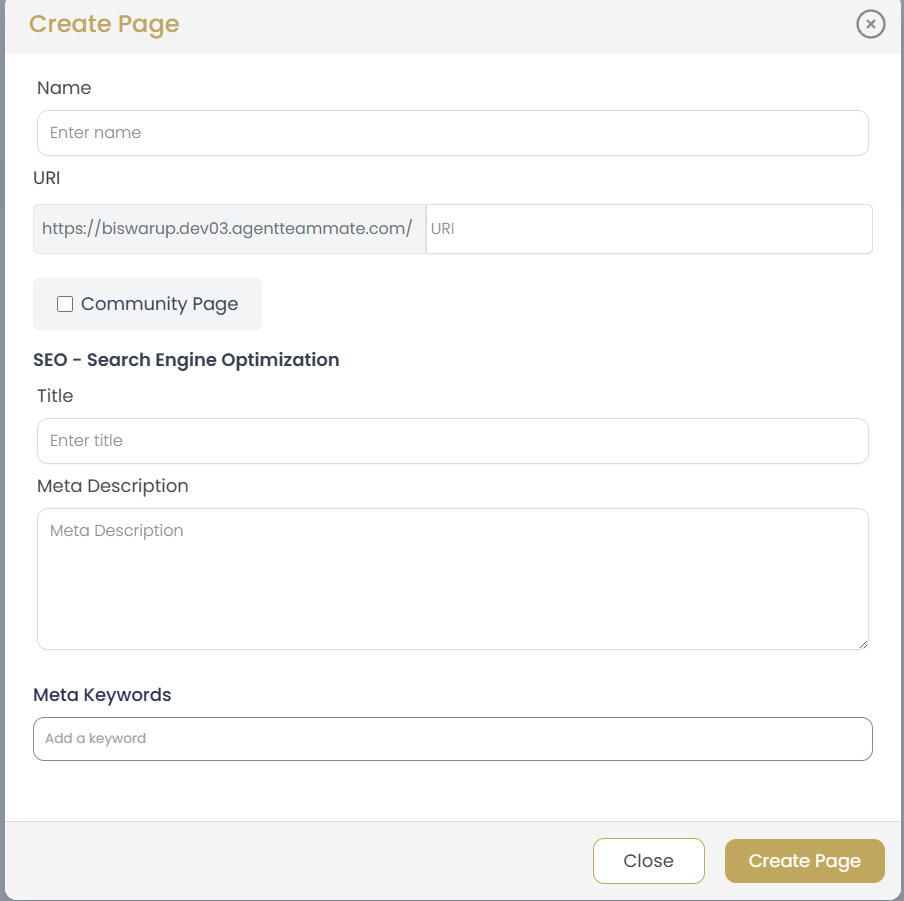
Page Name
Enter the internal name for your page (e.g., "Home"). This name is used for navigation and administrative purposes within the system.
Best Practice: Use clear, descriptive names that make it easy to identify pages in your admin panel.
URL Configuration
Set the web address for your page. The URL structure shows:
- Base URL: Your website domain (e.g., https://biswarup.dev03.agentteammate.com/)
- Page Slug: The specific page identifier (e.g., "home")
Important: Keep URLs short, descriptive, and SEO-friendly. Avoid special characters and spaces.
Community Page Option
Check the "Community Page" checkbox if this page should function as a community or neighborhood page. This enables special features like:
- Community-specific property listings
- Local market data integration
- Neighborhood information display
- Community-focused SEO optimization
Listings Page Integration
When Community Page is enabled, you can specify which listings page the community will redirect to. This creates a seamless user experience between community information and available properties.
SEO - Search Engine Optimization
Optimize your page for search engines to improve visibility and attract more visitors:
Page Title
Enter a compelling title that appears in search results and browser tabs. This is one of the most important SEO elements.
Title Best Practices:
- Keep titles between 50-60 characters
- Include your primary keyword naturally
- Make it descriptive and compelling
- Include location if relevant (e.g., "Real Estate in Toronto")
Meta Description
Write a concise description (150-160 characters) that summarizes your page content. This appears in search results below the title and influences click-through rates.
Meta Description Tips:
- Include a clear call-to-action
- Highlight unique value propositions
- Include relevant keywords naturally
- Make it compelling and informative
Meta Keywords
Add relevant keywords that describe your page content. Enter keywords separated by commas.
Note: While meta keywords have less SEO impact today, they can still help organize your content strategy.
Visual Page Editor
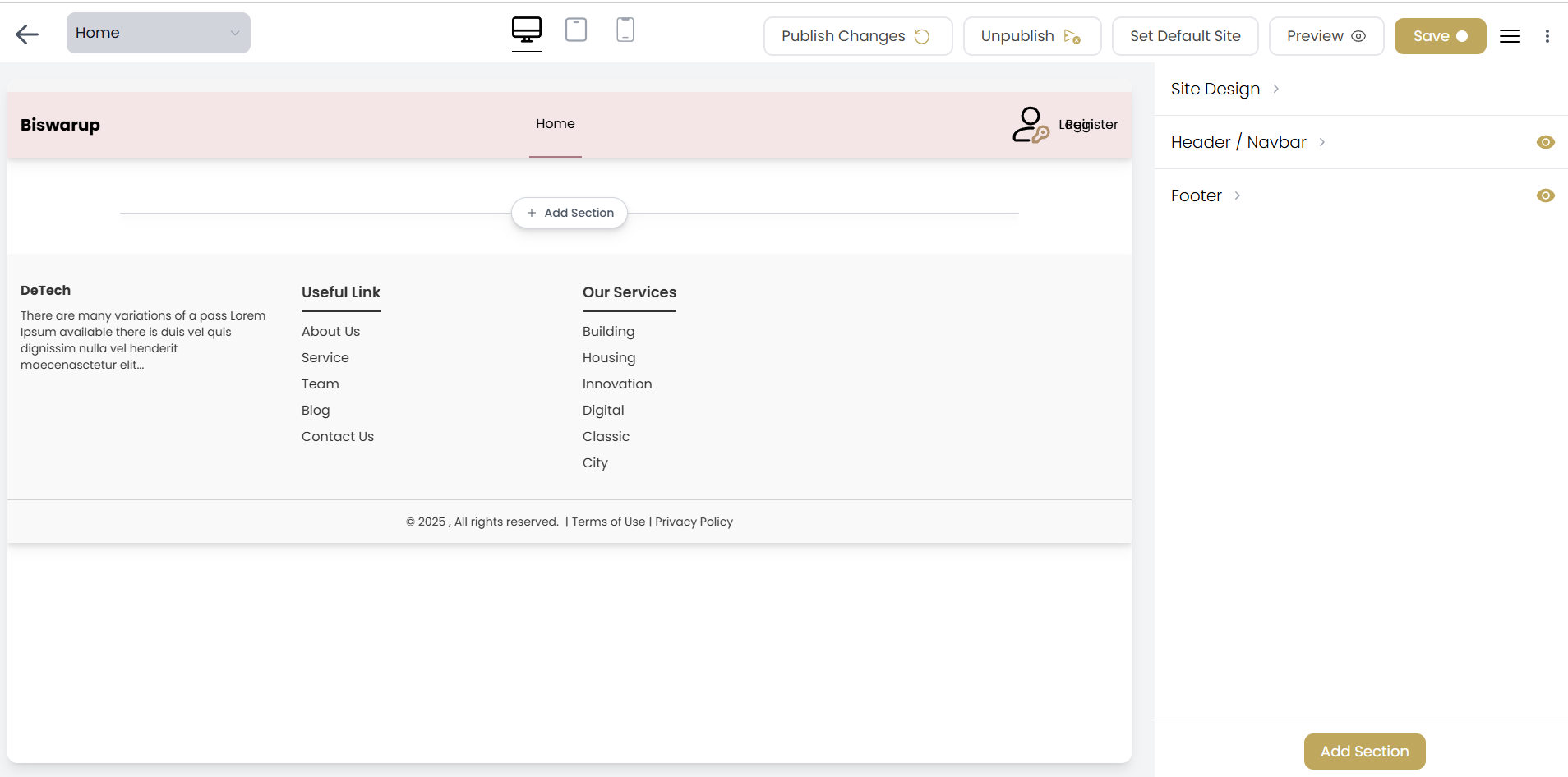
The visual editor shows how your page appears to visitors and allows real-time editing:
Editor Controls
- Device Preview: Switch between desktop, tablet, and mobile views
- Publish Changes: Make your edits live on the website
- Unpublish: Remove the page from public view
- Set Default Site: Make this the homepage
- Preview: View the page as visitors would see it
- Save: Save your work without publishing
Adding Sections
Enhance your pages with dynamic sections that provide functionality and content:
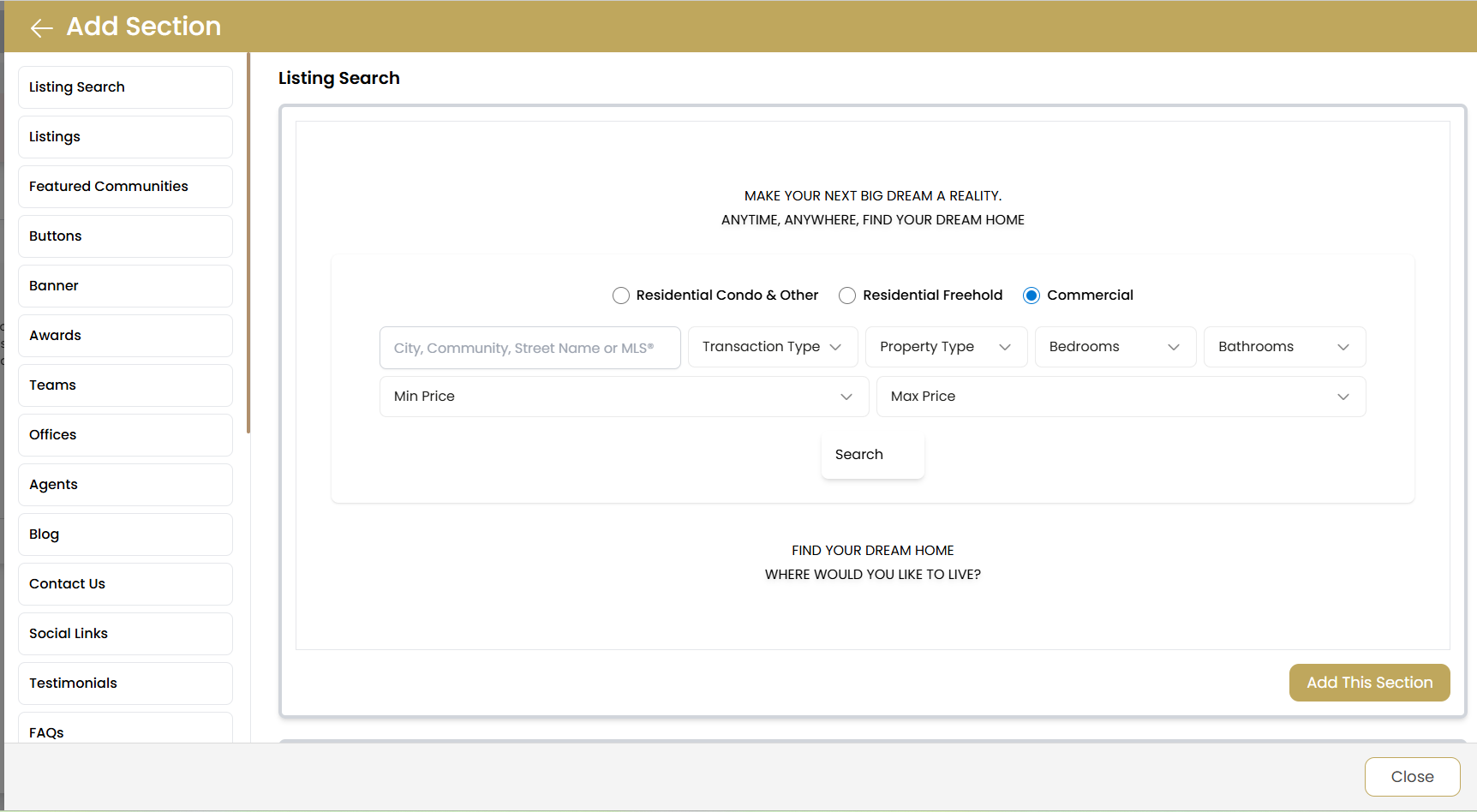
| Section Type | Purpose | Best Used For |
|---|---|---|
| Listing Search | Property search functionality | Homepage, search pages |
| Listings | Display property listings | Homepage, property pages |
| Featured Communities | Highlight neighborhoods | Homepage, community pages |
| Buttons | Call-to-action elements | Any page for user guidance |
| Banner | Hero images and headlines | Homepage, landing pages |
| Awards | Display achievements | About page, homepage |
| Teams | Show team members | About page, contact page |
| Offices | Office locations and info | Contact page, about page |
| Agents | Individual agent profiles | Team page, homepage |
| Blog | Latest blog posts | Homepage, blog page |
| Contact Us | Contact forms and info | Contact page, footer |
| Social Links | Social media connections | Footer, contact page |
| Testimonials | Client reviews and feedback | Homepage, about page |
| FAQs | Frequently asked questions | Dedicated FAQ page |
Listing Search Section
The Listing Search section is a powerful tool that allows visitors to search for properties directly from your page:
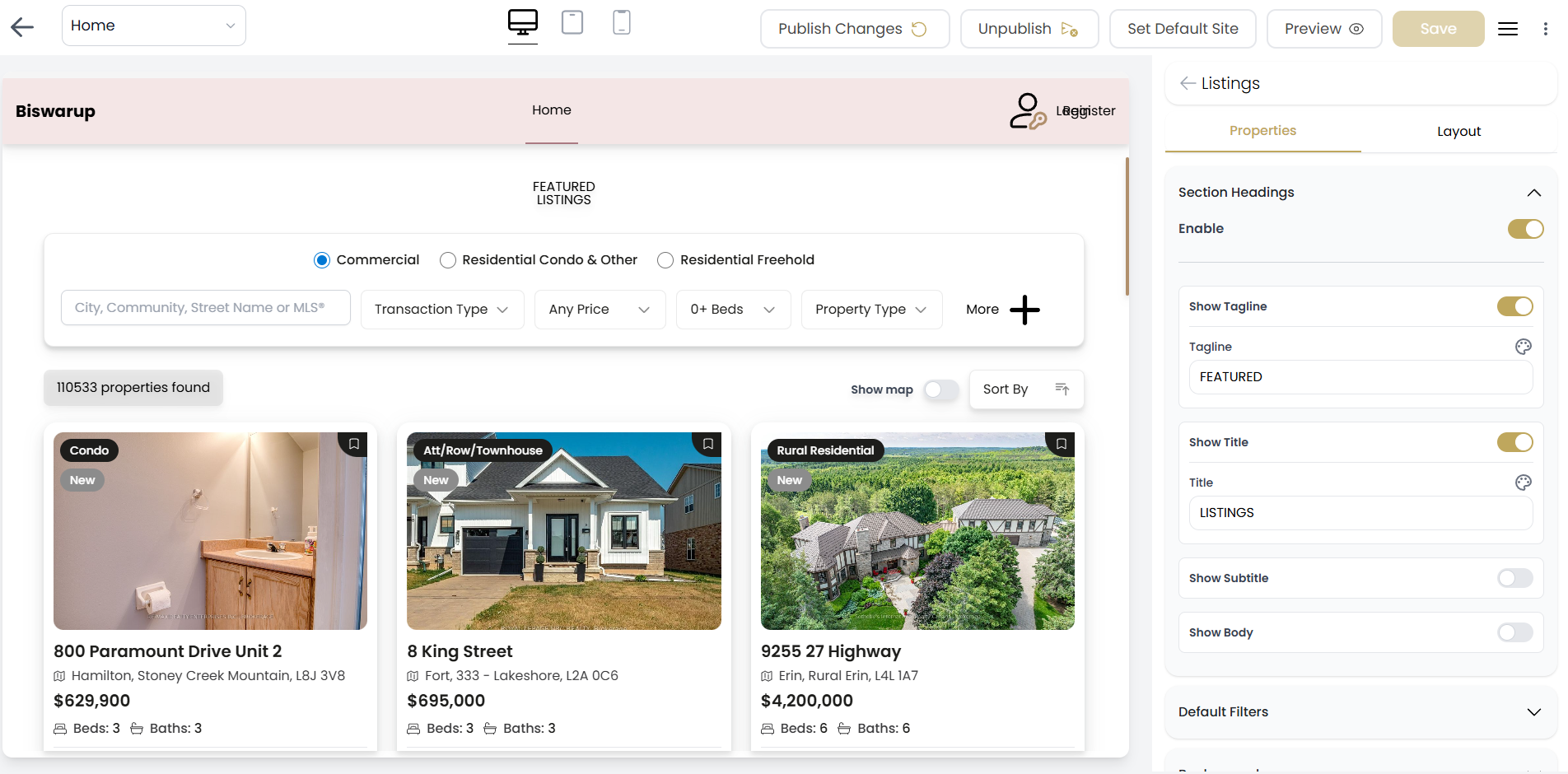
Search Form Configuration
Customize the search form with compelling headlines and clear calls-to-action:
- Primary Headline: "MAKE YOUR NEXT BIG DREAM A REALITY."
- Secondary Text: "ANYTIME, ANYWHERE, FIND YOUR DREAM HOME"
- Bottom Text: "FIND YOUR DREAM HOME WHERE WOULD YOU LIKE TO LIVE?"
Property Type Filters
Enable different property type options:
- Residential Condo & Other: Condominiums and similar properties
- Residential Freehold: Single-family homes and townhouses
- Commercial: Business and investment properties
Search Criteria
Configure available search filters:
- Location Search: City, Community, Street Name or MLS#
- Transaction Type: Buy, Rent, Lease options
- Property Type: House, Condo, Townhouse, etc.
- Bedrooms/Bathrooms: Dropdown selections
- Price Range: Min and Max price filters
Adding the Section
To add a Listing Search section to your page:
- Click the Add Section button
- Select "Listing Search" from the menu
- Customize the text and settings
- Click Add This Section
Responsive Design
Ensure your pages look great on all devices:
Device Testing
- Use the device preview buttons to test different screen sizes
- Check that text is readable on mobile devices
- Ensure buttons and forms are easily clickable on touch screens
- Verify that images scale properly across devices
Mobile Optimization Tips
- Keep headlines concise for smaller screens
- Ensure adequate spacing between clickable elements
- Test form functionality on mobile devices
- Optimize images for faster loading on mobile networks
Publishing and Management
Save vs. Publish
- Save: Stores your changes without making them public
- Publish Changes: Makes your edits live on the website
- Preview: Shows how changes will appear before publishing
Page Actions
Available actions for your pages:
- Update & Next: Save changes and move to next editing step
- Delete: Remove the page entirely (use with caution)
- Close: Exit the editor without saving
- Unpublish: Remove page from public view temporarily
Set Default Site
Make any page your homepage by clicking "Set Default Site". This determines what visitors see when they visit your main domain.
Best Practices
Content Strategy
- Create clear, compelling headlines that grab attention
- Use action-oriented language in calls-to-action
- Include relevant keywords naturally in your content
- Keep important information "above the fold"
SEO Optimization
- Use unique titles and descriptions for each page
- Include location-based keywords for local SEO
- Optimize images with descriptive alt text
- Create user-friendly URLs
User Experience
- Make navigation intuitive and consistent
- Ensure fast loading times by optimizing images
- Test functionality across different devices
- Provide clear paths to contact you
Troubleshooting
Changes Not Appearing
- Make sure you clicked "Publish Changes" not just "Save"
- Clear your browser cache and refresh
- Try viewing in an incognito/private window
- Check if the page is still unpublished
Section Not Loading
- Verify the section has required content (listings, team members, etc.)
- Check your internet connection
- Try refreshing the page editor
- Contact support if issues persist
Mobile Display Issues
- Test on actual mobile devices, not just browser emulation
- Check image sizes and loading times
- Verify touch targets are large enough (minimum 44px)
- Test form functionality on mobile
Next Steps
After mastering the Page Editor, explore these related features: