Communities Management
Manage and showcase the neighborhoods and communities you serve to help clients find their perfect location
Overview
The Communities Management system allows you to organize and display information about the neighborhoods, subdivisions, and communities in your service area. This feature helps potential clients understand the areas you specialize in and makes it easier for them to find properties in their preferred locations.
Key Benefits
- Location Expertise: Demonstrate your knowledge of local neighborhoods
- Client Education: Help buyers understand different community options
- Search Enhancement: Make property searches more targeted and relevant
- Market Positioning: Showcase your specialization in specific areas
Adding Communities
Access Communities Management
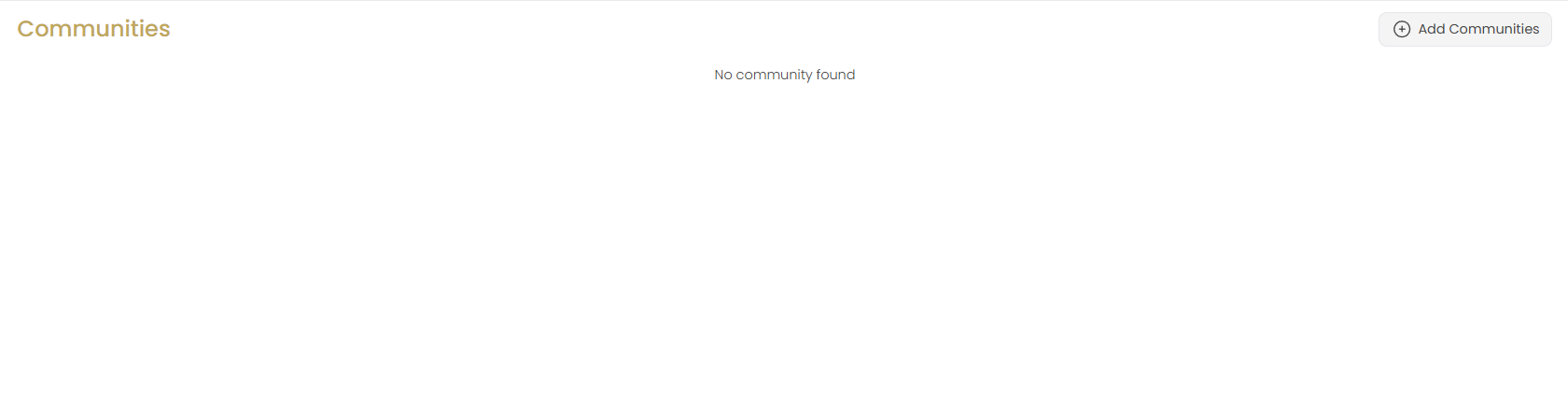
Navigate to the Communities section in your website management area. If no communities are set up, you'll see "No community found" with an option to add your first community.
Click Add Communities
Click the Add Communities button to open the community selection dialog.
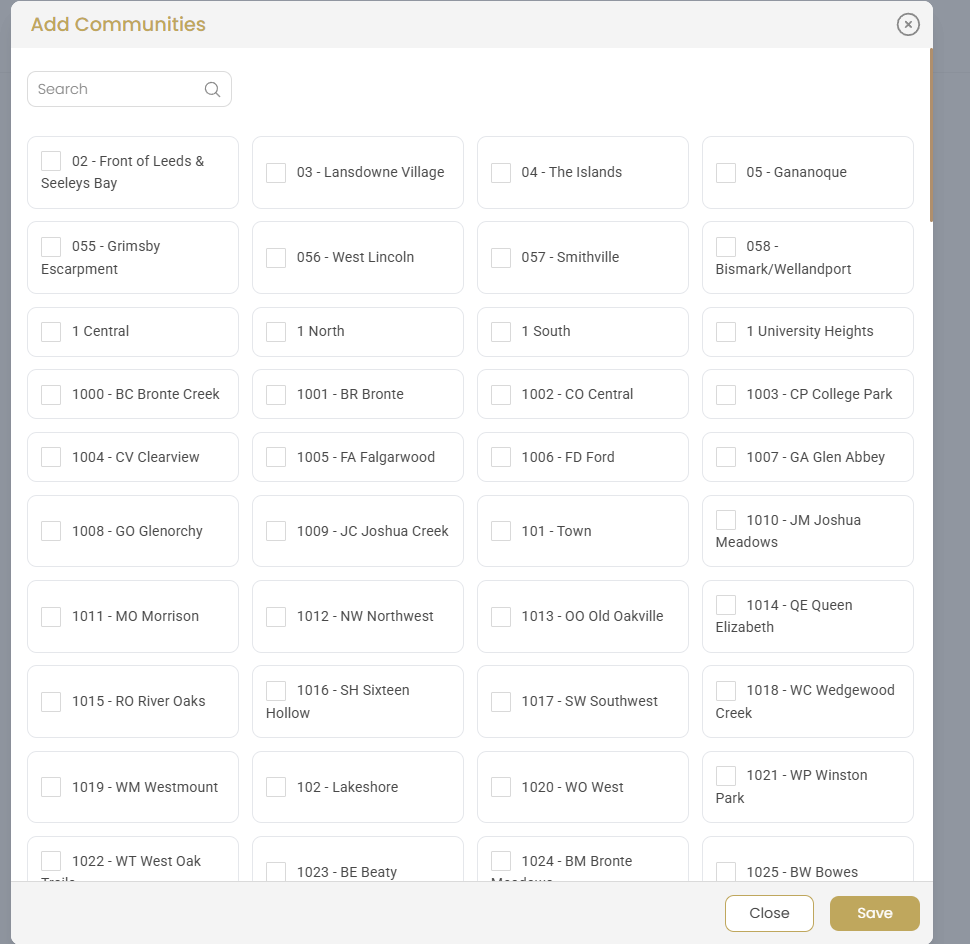
Search and Select Communities
Use the Add Communities dialog to find and select relevant neighborhoods:
- Search Function: Use the search bar to quickly find specific communities
- Browse Categories: Scroll through organized community listings
- Multiple Selection: Check multiple communities at once for bulk addition
- Area Codes: Communities are organized with area codes and descriptive names
- Comprehensive List: Choose from hundreds of pre-defined communities
Pro Tip: Start by adding the communities where you have the most experience and recent sales.
Review Your Selections
Before saving, review your selected communities:
- Ensure you've selected communities you actively serve
- Consider your expertise level in each area
- Think about market demand in each community
- Verify spelling and accuracy of community names
Save Communities
Click Save to add the selected communities to your list, or Close to cancel without saving.
Managing Your Communities
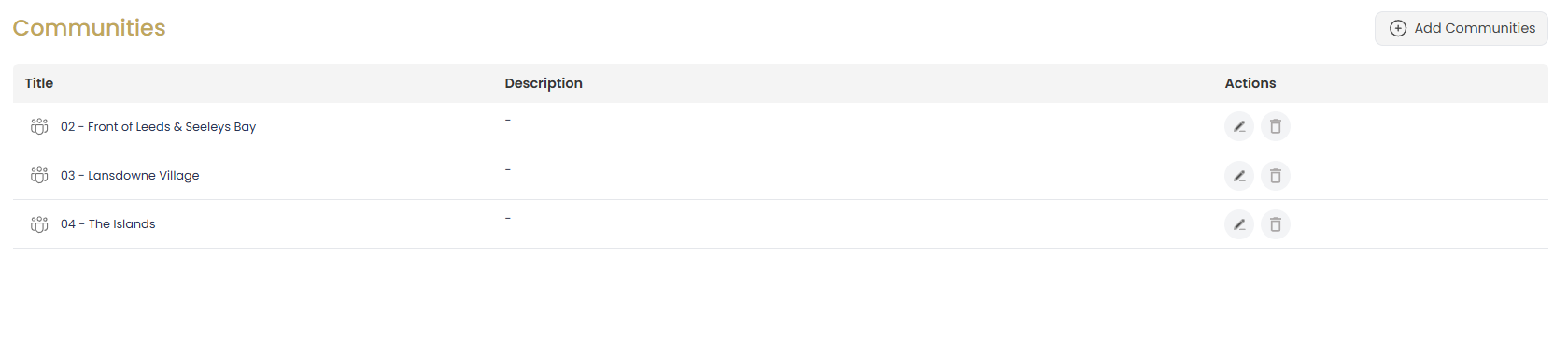
View Communities List
Your added communities are displayed in a organized table format:
- Title: Community name with area code and descriptive identifier
- Description: Custom description field for adding your insights
- Actions: Edit and delete buttons for each community
- Organization: Communities listed in order of addition
Add More Communities
Use the Add Communities button in the top right to continue adding more neighborhoods to your service area.
Edit Community Details
Click the edit icon (pencil) next to any community to modify its information and add custom descriptions.
Updating Community Information
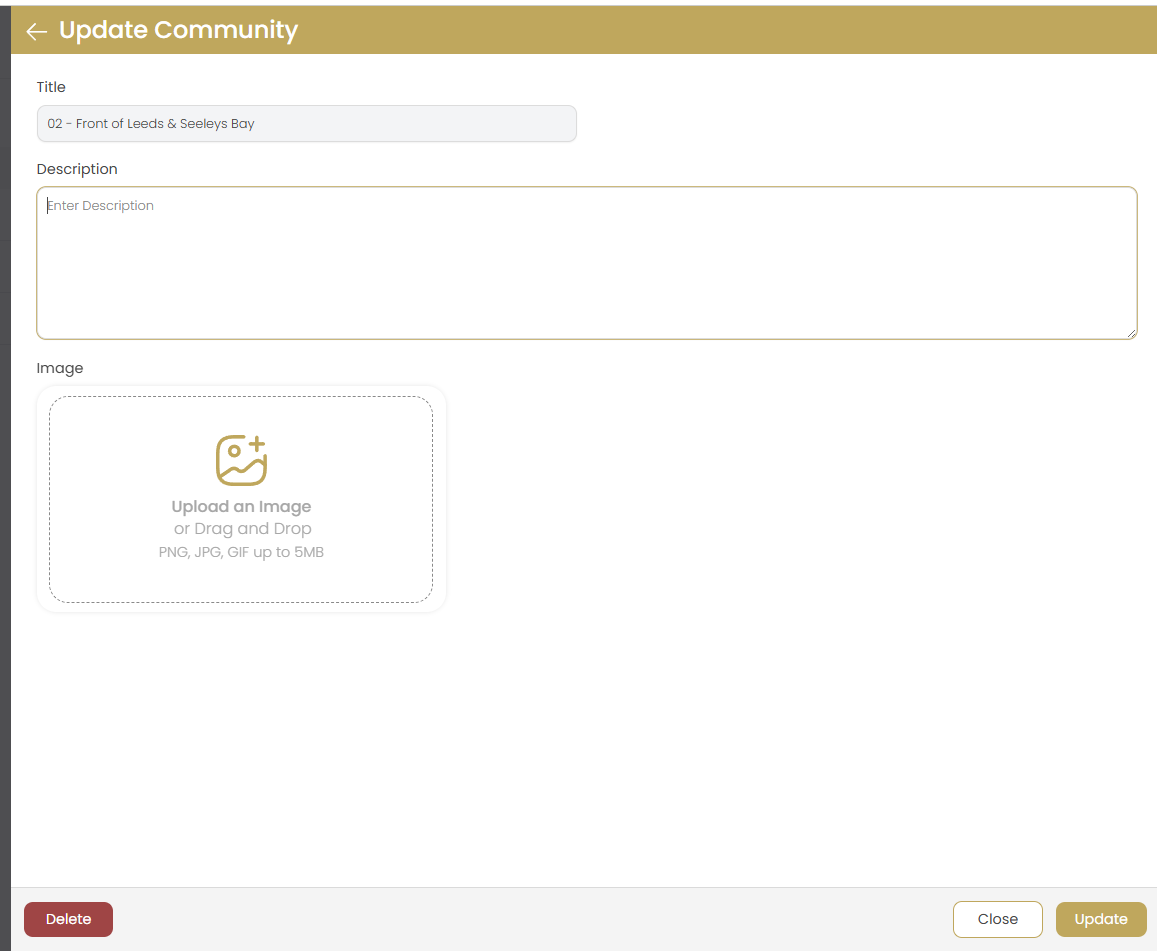
Edit Community Details
In the Update Community form, you can customize the following:
- Title: Modify the community name if needed (usually pre-filled)
- Description: Add detailed information about the neighborhood
- Community Image: Upload photos showcasing the area
Write Compelling Descriptions
Create informative community descriptions that include:
- Key Features: Highlight what makes this community special
- Amenities: Mention parks, schools, shopping, and entertainment
- Demographics: Describe the typical residents and lifestyle
- Market Insights: Share your professional knowledge about the area
- Transportation: Note proximity to major roads, public transit
- Home Styles: Describe typical architecture and price ranges
SEO Tip: Include relevant keywords that potential buyers might search for when looking for homes in this area.
Upload Community Images
Add visual appeal with community photos:
- Supported Formats: PNG, JPG, GIF up to 5MB
- Upload Methods: Click to browse or drag and drop
- Image Ideas: Neighborhood entrance, parks, local landmarks
- Quality Standards: Use high-resolution, professional photos
- Seasonal Variety: Consider images from different seasons
Save Changes
Click Update to save your changes, or Close to exit without saving modifications.
Delete Community
Use the Delete button to remove a community from your list:
- This action cannot be undone
- Consider if you might serve this area in the future
- Removing communities may affect property search filters
Community Management Best Practices
Selecting Your Communities
Choose communities strategically:
- Experience First: Start with areas where you have sales history
- Geographic Logic: Focus on contiguous service areas
- Market Knowledge: Only include areas you can speak about confidently
- Growth Potential: Consider emerging neighborhoods with opportunity
- Client Demand: Include areas where you receive frequent inquiries
Writing Effective Descriptions
Create descriptions that inform and engage:
- Local Expertise: Share insider knowledge about the area
- Lifestyle Focus: Describe what living there is like
- Practical Information: Include commute times, school districts
- Market Context: Mention typical home prices and trends
- Unique Selling Points: Highlight what sets this community apart
- Regular Updates: Keep information current with market changes
Community Description Examples
Sample descriptions for different community types:
- Family Neighborhoods: "Quiet tree-lined streets with excellent schools and family-friendly amenities"
- Urban Areas: "Vibrant downtown living with walkable restaurants, entertainment, and public transit"
- Suburban Communities: "Established neighborhood with mature landscaping and convenient shopping centers"
- Luxury Areas: "Prestigious community featuring custom homes and exclusive country club access"
- Waterfront: "Scenic lakefront community with private beach access and resort-style amenities"
Maintaining Your Community List
Keep your communities current and relevant:
- Regular Reviews: Update descriptions quarterly or after major changes
- Market Updates: Reflect new developments, amenities, or infrastructure
- Seasonal Adjustments: Update photos and descriptions for seasonal appeal
- Performance Tracking: Monitor which communities generate the most interest
- Client Feedback: Incorporate insights from recent buyers and sellers
Integration with Marketing
Leverage your community expertise:
- Content Marketing: Write blog posts about neighborhood trends
- Social Media: Share community highlights and local events
- Client Consultations: Reference your community knowledge in meetings
- Property Listings: Highlight community benefits in descriptions
- Email Campaigns: Send community-specific market updates
Troubleshooting
Cannot Find Specific Community
Solution: Try different search terms or check for alternate spellings. Use area codes or nearby landmarks if the exact community name doesn't appear.
Community Image Not Uploading
Solution: Ensure the image file is under 5MB and in PNG, JPG, or GIF format. Check your internet connection and try compressing the image if it's too large.
Communities Not Appearing on Website
Solution: Verify that the communities feature is enabled on your website pages and that you've saved your community selections properly.
Search Function Not Working
Solution: Clear your browser cache and ensure JavaScript is enabled. Try using partial search terms if full names don't return results.
Duplicate Community Entries
Solution: Check your community list for duplicates and remove any redundant entries. Some communities may appear with different area codes or naming conventions.
Description Formatting Issues
Solution: Use plain text formatting and avoid copying content from external sources that might include hidden formatting characters.