Office Management
Set up and manage your office locations, contact information, and service areas
Overview
The Office Management system allows you to create and manage multiple office locations for your real estate business. Each office can have its own branding, contact information, service areas, operating hours, and associated teams and agents. This is essential for showcasing your business presence and helping clients find the right office for their needs.
Key Benefits
- Display multiple office locations on your website
- Manage contact information and operating hours
- Define service areas and specialties
- Integrate social media presence
- Organize teams and agents by location
- Professional presentation for clients
Office Configuration Tabs
Each office setup is organized into several tabs for comprehensive configuration:
| Tab | Purpose | Key Features |
|---|---|---|
| Branding | Basic office information and identity | Name, tagline, logo, business details |
| Contact | Contact information and address | Phone, email, physical address, website |
| Service Area | Define specialty services offered | Real estate services, property types |
| Social Media | Social media presence and links | Facebook, LinkedIn, Instagram, YouTube |
| Availability | Operating hours and schedule | Daily hours, weekend availability |
| Teams | Team management for the office | Add and organize teams |
| Agents | Individual agent management | Add and manage agents |
Adding a New Office
Access Office Management
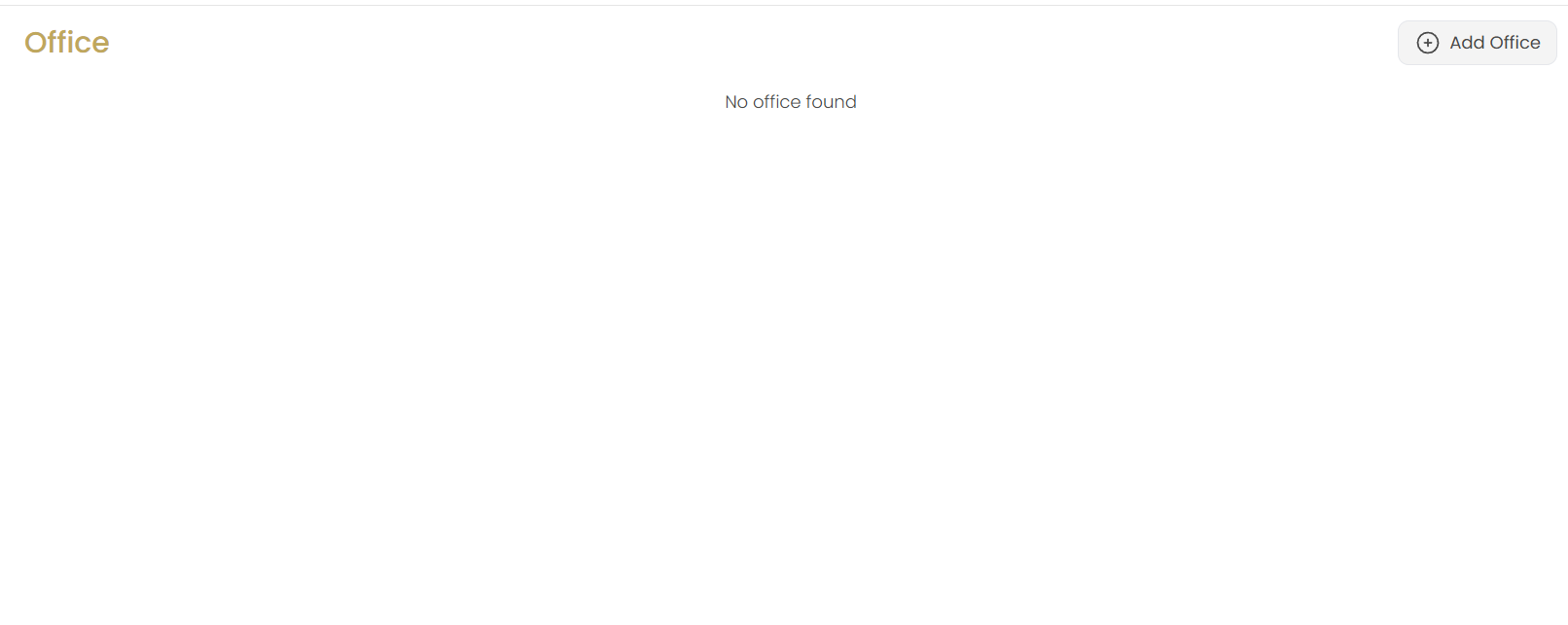
Navigate to the Office section in the Website menu. If no offices exist, you'll see "No office found" with an option to add your first office.
Click Add Office
Click the Add Office button in the top-right corner to start creating your office profile.
Configure Office Details
You'll be taken to the office configuration interface with multiple tabs to complete your setup.
Branding Tab Configuration
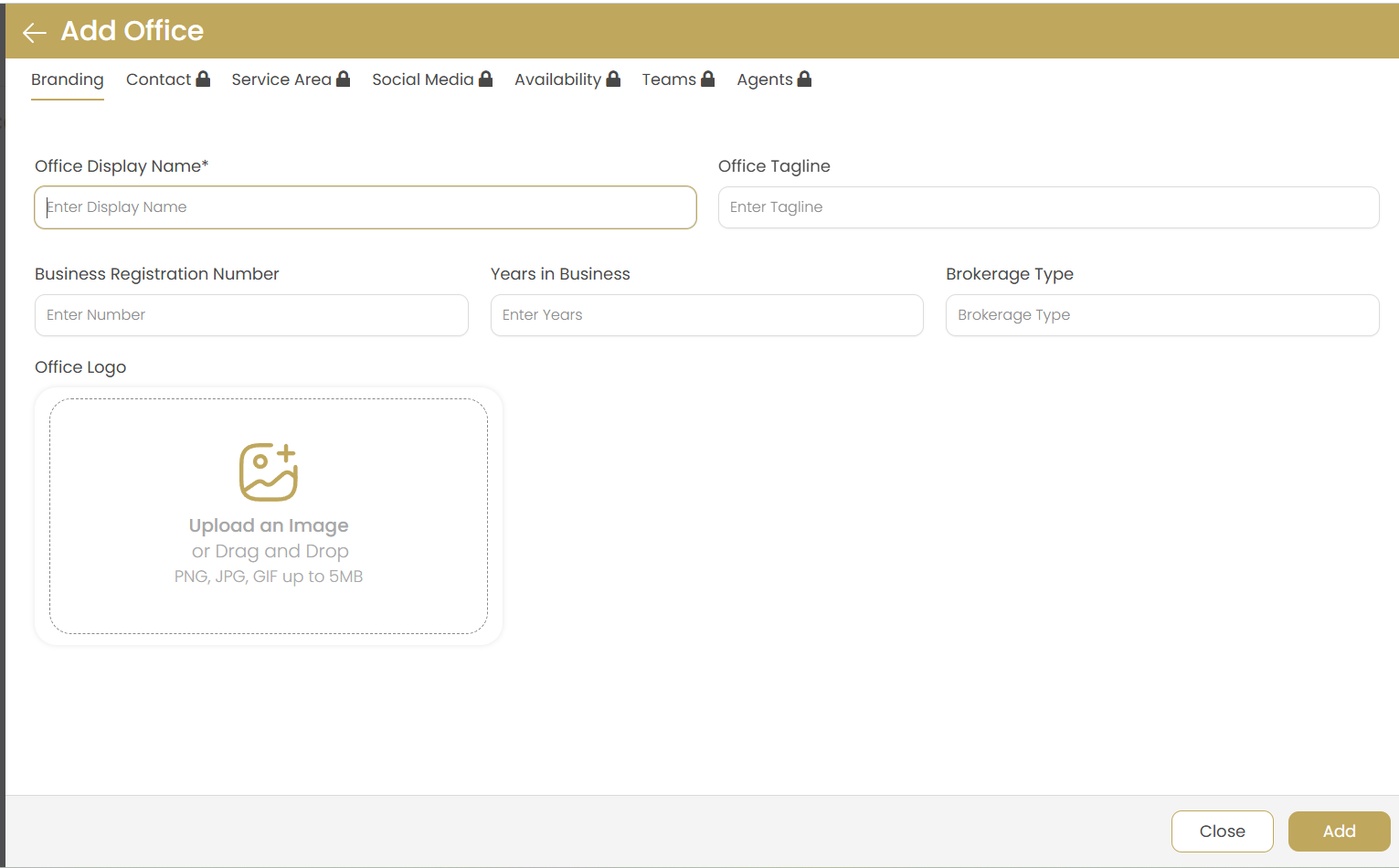
Office Display Name
Enter the public name for your office as it will appear on your website and marketing materials.
Examples: "Downtown Toronto Office", "Main Branch", "Westside Realty"
Office Tagline
Add a compelling tagline that describes your office's unique value proposition or service philosophy.
Examples: "Your Local Real Estate Experts", "Serving the Community Since 1995"
Business Registration Number
Enter your official business registration or license number for legal compliance and credibility.
Years in Business
Specify how many years your office has been operating. This helps establish credibility and experience.
Brokerage Type
Select the type of real estate brokerage from the dropdown menu (e.g., Residential, Commercial, Mixed-use).
Office Logo
Upload your office logo or brand image:
- Supported formats: PNG, JPG, GIF
- Maximum size: 5MB
- Recommended dimensions: 200x200px to 400x400px
- Background: Transparent PNG preferred
Contact Information Tab
Phone Numbers
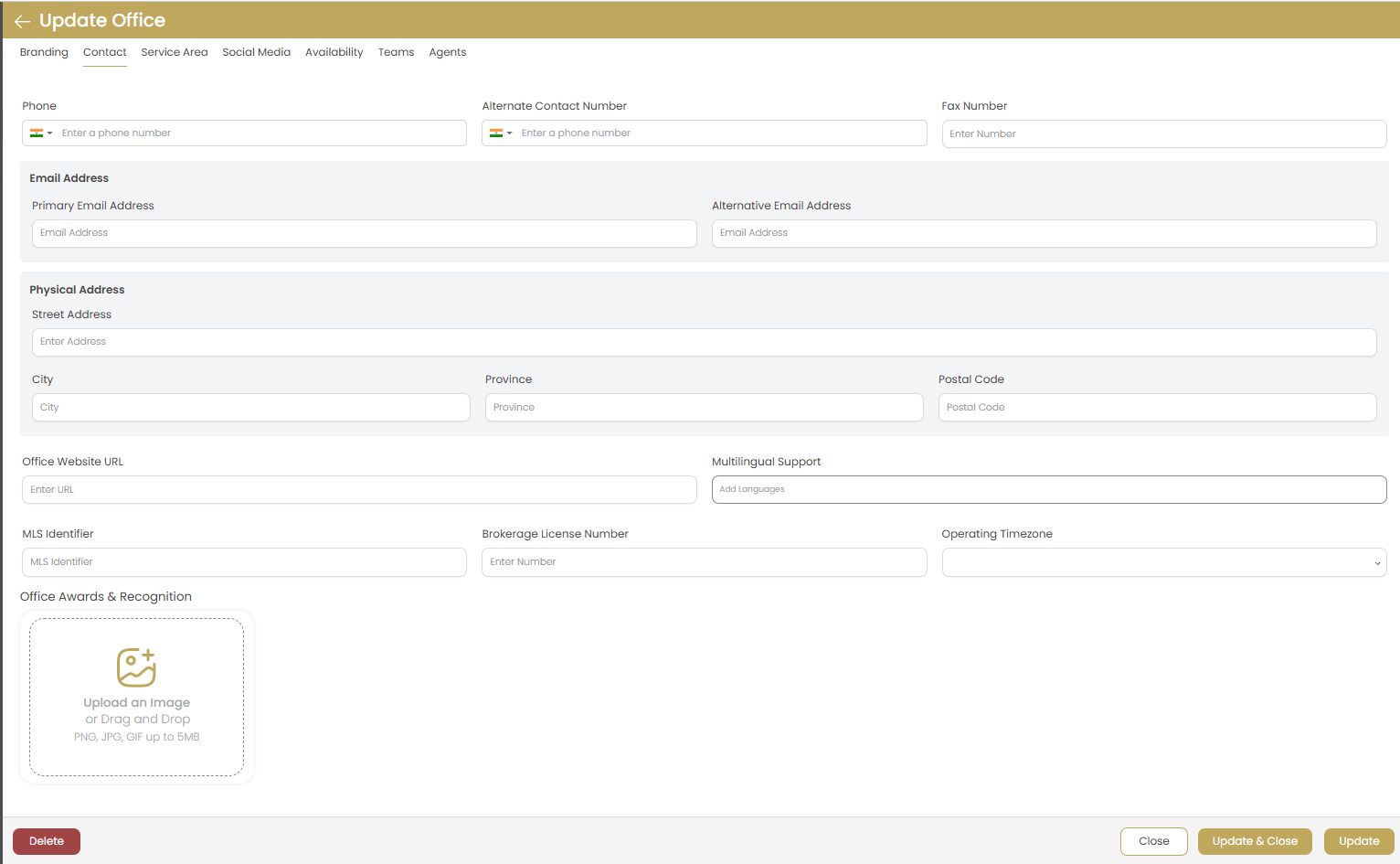
Configure your office phone numbers with country codes:
- Primary Phone: Main office number
- Alternate Contact Number: Secondary or mobile number
- Fax Number: Office fax line (optional)
Email Addresses
Set up email communication channels:
- Primary Email: Main office email address
- Alternative Email: Secondary or department-specific email
Physical Address
Enter your complete office address:
- Street Address: Complete street address
- City: Office city
- Province/State: Geographic region
- Postal Code: ZIP or postal code
Additional Information
Complete your office profile with:
- Office Website URL: Dedicated office website
- Multilingual Support: Languages supported
- MLS Identifier: Multiple Listing Service ID
- Brokerage License Number: Official license number
- Operating Timezone: Local timezone
Awards & Recognition
Upload images of awards, certifications, or recognitions received by your office to build credibility.
Service Area Configuration
Primary Service Area
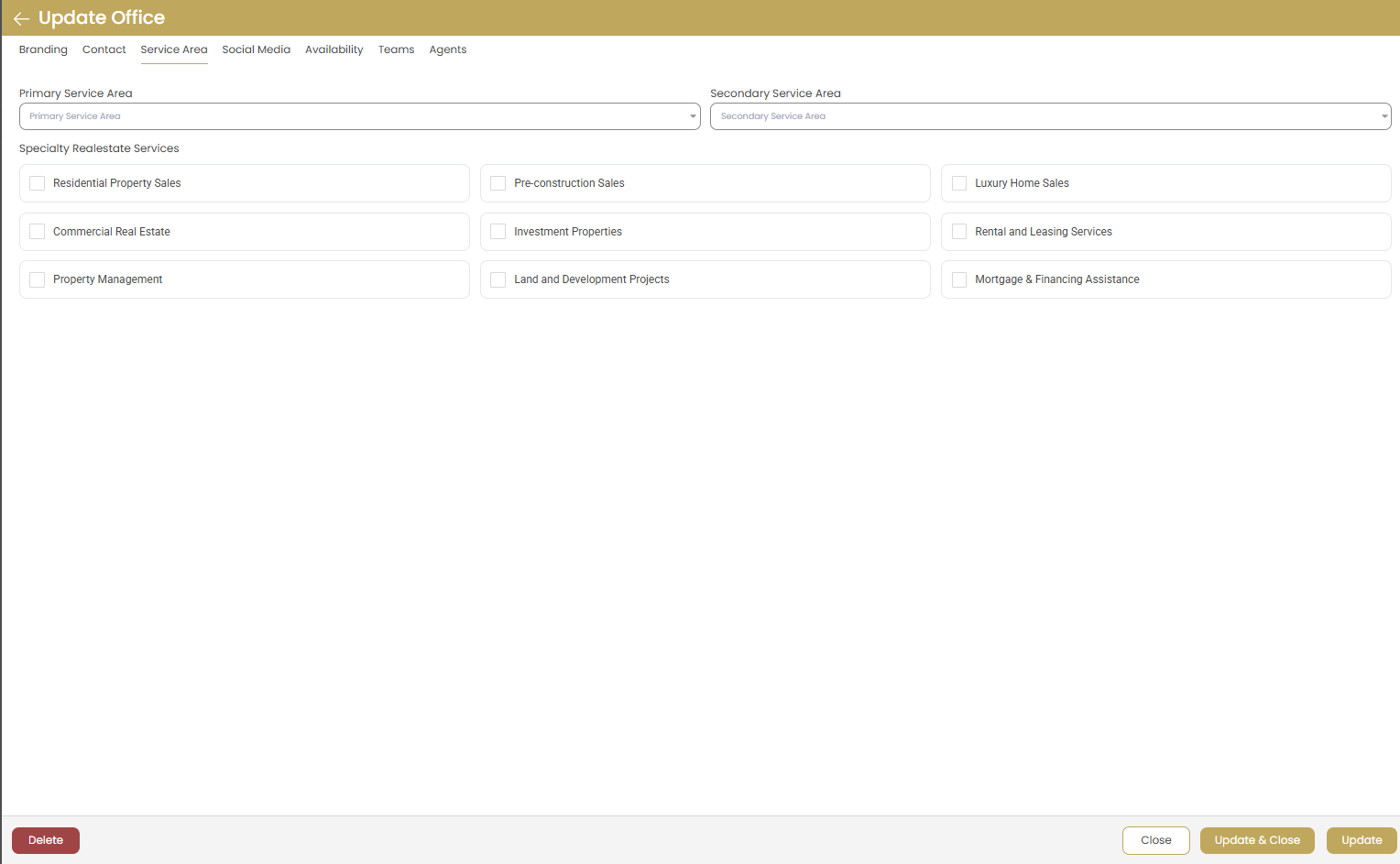
Define the main geographic area your office serves. This helps with local SEO and client targeting.
Secondary Service Area
Add additional areas where you provide services, expanding your coverage area.
Specialty Real Estate Services
Select the types of real estate services your office specializes in:
| Service Category | Description | Target Market |
|---|---|---|
| Residential Property Sales | Buying and selling homes, condos, townhouses | Individual homeowners and families |
| Commercial Real Estate | Office buildings, retail spaces, warehouses | Business owners and investors |
| Property Management | Managing rental properties and tenants | Property owners and landlords |
| Pre-construction Sales | New development and pre-built properties | First-time buyers and investors |
| Investment Properties | Properties for rental income or appreciation | Real estate investors |
| Land and Development Projects | Raw land, development opportunities | Developers and investors |
| Luxury Home Sales | High-end residential properties | Affluent buyers and sellers |
| Rental and Leasing Services | Rental property placement and leasing | Tenants and landlords |
| Mortgage & Financing Assistance | Loan facilitation and financial guidance | Buyers needing financing |
Social Media Integration
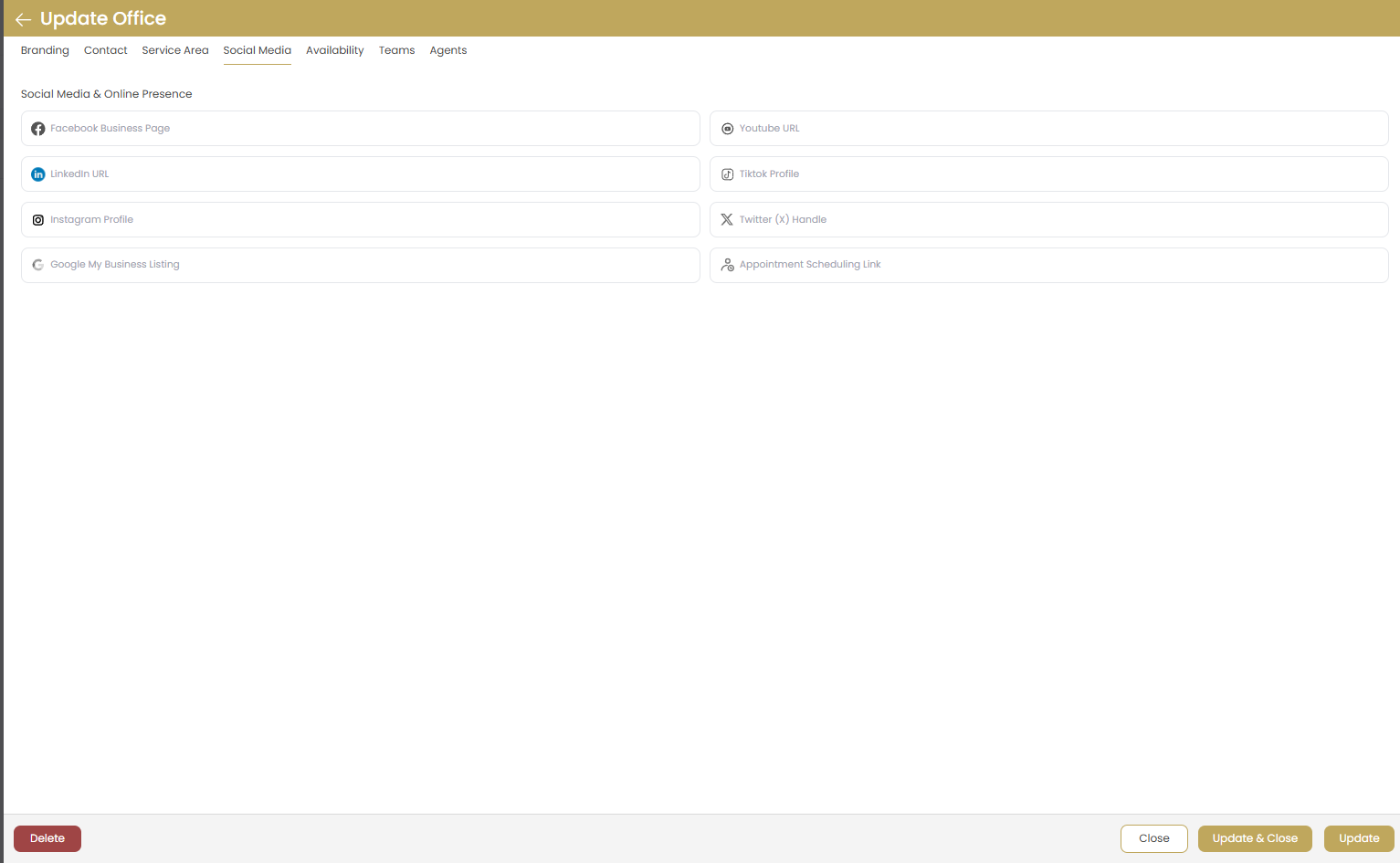
Social Media Platforms
Connect your office's social media accounts to enhance online presence:
- Facebook Business Page: Your office's Facebook page URL
- LinkedIn URL: Professional LinkedIn company page
- Instagram Profile: Visual content and property showcases
- Google My Business Listing: Local business listing
- YouTube URL: Video content and virtual tours
- TikTok Profile: Short-form video content
- Twitter (X) Handle: Real-time updates and news
Appointment Scheduling
Add your online appointment scheduling link to make it easy for clients to book consultations.
Social Media Best Practices
- Keep all social media profiles active and updated
- Use consistent branding across all platforms
- Share valuable content like market updates and property listings
- Engage with your community and respond to comments
- Use local hashtags to improve discoverability
Office Hours and Availability
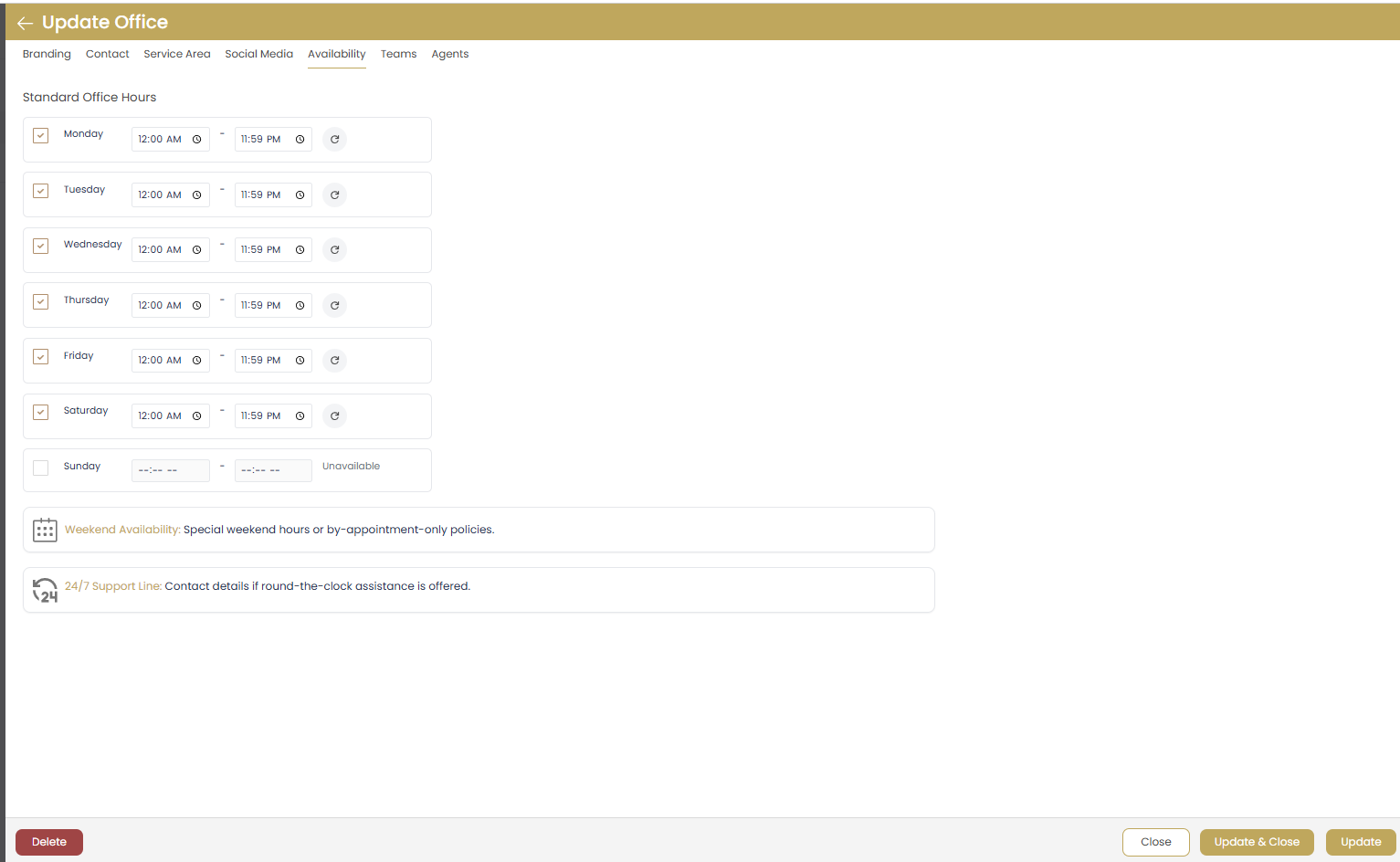
Standard Office Hours
Configure your office's operating hours for each day of the week:
- Enable/Disable Days: Check boxes for days you're open
- Opening Time: When your office opens (e.g., 12:00 AM)
- Closing Time: When your office closes (e.g., 11:59 PM)
- Unavailable Days: Mark days when office is closed
Weekend Availability
Special configuration for weekend operations:
- Saturday Hours: Weekend availability
- Sunday Hours: Can be marked as "Unavailable"
- Special Policies: Weekend hours or by-appointment-only
Additional Availability Options
Enhanced availability features:
- Weekend Availability: Special weekend hours or by-appointment policies
- 24/7 Support Line: Round-the-clock assistance contact details
- Emergency Contact: After-hours emergency support
Important Notes
- Hours display on your website and Google My Business listing
- Accurate hours help clients know when to visit or call
- Update hours for holidays and special events
- Consider offering flexible appointment times for better client service
Teams Management
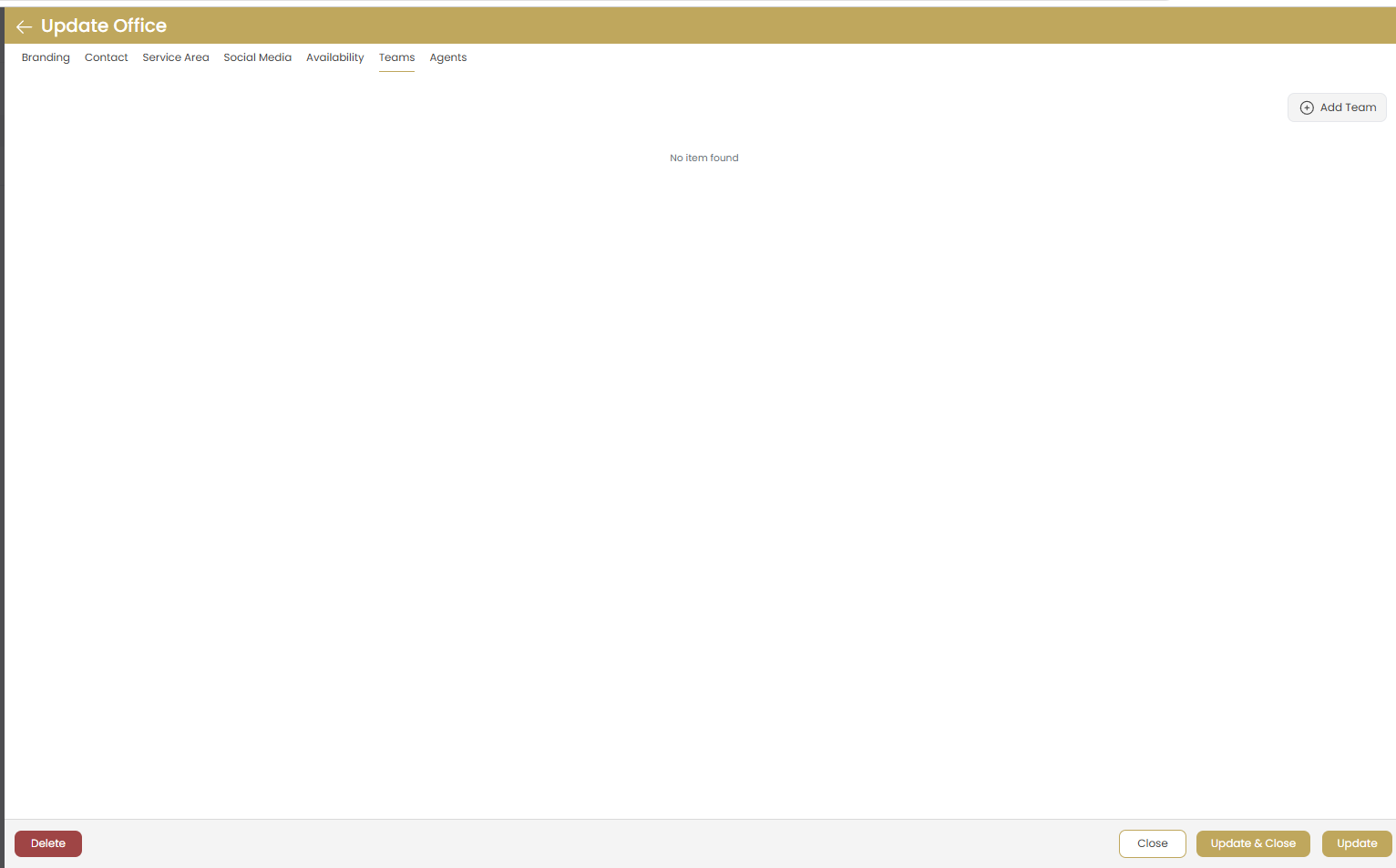
Adding Teams
When no teams exist, you'll see "No item found" with an option to add teams:
- Click Add Team to create your first team
- Teams help organize agents by specialization or location
- Each team can have its own focus area and leadership
Team Organization Benefits
- Organize agents by specialization (residential, commercial, luxury)
- Create location-based teams for multiple offices
- Establish clear reporting structures
- Showcase team expertise on your website
Agents Management
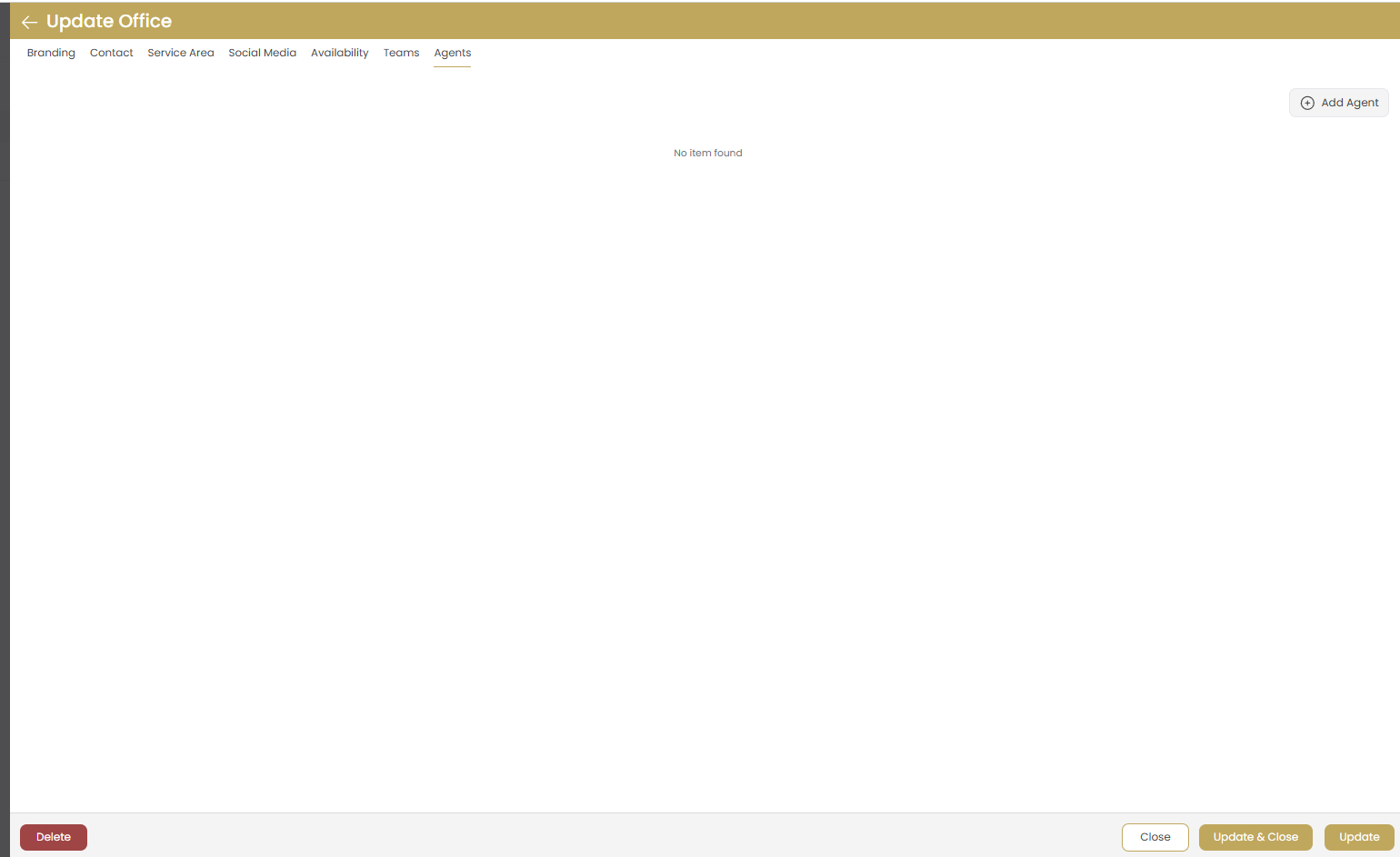
Adding Agents
When no agents are assigned, you'll see "No item found" with an option to add agents:
- Click Add Agent to assign agents to this office
- Agents can be assigned to multiple offices if needed
- Each agent profile includes contact info, specialties, and performance data
Agent Profile Management
- Individual agent contact information
- Professional photos and biographies
- Specialization areas and certifications
- Performance metrics and client testimonials
- Social media and contact preferences
Saving and Managing Offices
Save Options
Multiple save options are available:
- Close: Exit without saving changes
- Update & Close: Save changes and return to office list
- Update: Save changes and continue editing
- Add: Save new office (for new offices)
Delete Office
Use the Delete button to remove offices no longer needed.
Warning: Deleting an office will also remove associated teams and agent assignments. This action cannot be undone.
Best Practices
Complete Profile Setup
- Fill out all tabs completely for maximum effectiveness
- Use high-quality, professional photos and logos
- Keep contact information current and accurate
- Regularly update operating hours and availability
Local SEO Optimization
- Include location-specific keywords in office names and taglines
- Ensure NAP (Name, Address, Phone) consistency across all platforms
- Connect Google My Business listing for local search visibility
- Highlight service areas and specializations
Professional Presentation
- Use consistent branding across all office materials
- Include professional certifications and awards
- Showcase years of experience and expertise
- Provide multiple contact methods for client convenience
Troubleshooting
Logo Upload Issues
- Ensure file size is under 5MB
- Use supported formats: PNG, JPG, GIF
- Check image dimensions and quality
- Try clearing browser cache and re-uploading
Address Not Displaying Correctly
- Verify all address fields are complete
- Check postal code format
- Ensure province/state is correctly selected
- Test address in Google Maps for accuracy
Social Media Links Not Working
- Include full URL with https://
- Test links in a separate browser tab
- Ensure social media profiles are public
- Check for typos in profile URLs
Next Steps
After setting up your office, explore these related features: