AI Assistants
Configure and customize AI-powered chat assistants to help visitors, answer questions, and generate leads automatically
Overview
The AI Assistants feature allows you to deploy intelligent chatbots on your website that can engage with visitors 24/7, answer common questions about real estate, provide property information, and capture leads. These AI-powered assistants use advanced language models to provide natural, helpful conversations that enhance user experience and increase conversion rates.
Key Benefits
- 24/7 Availability: Provide instant responses to visitors at any time
- Lead Generation: Capture visitor information and qualify prospects
- Customer Support: Answer common real estate questions automatically
- Professional Image: Demonstrate cutting-edge technology adoption
- Cost Effective: Reduce manual customer service workload
General Configuration
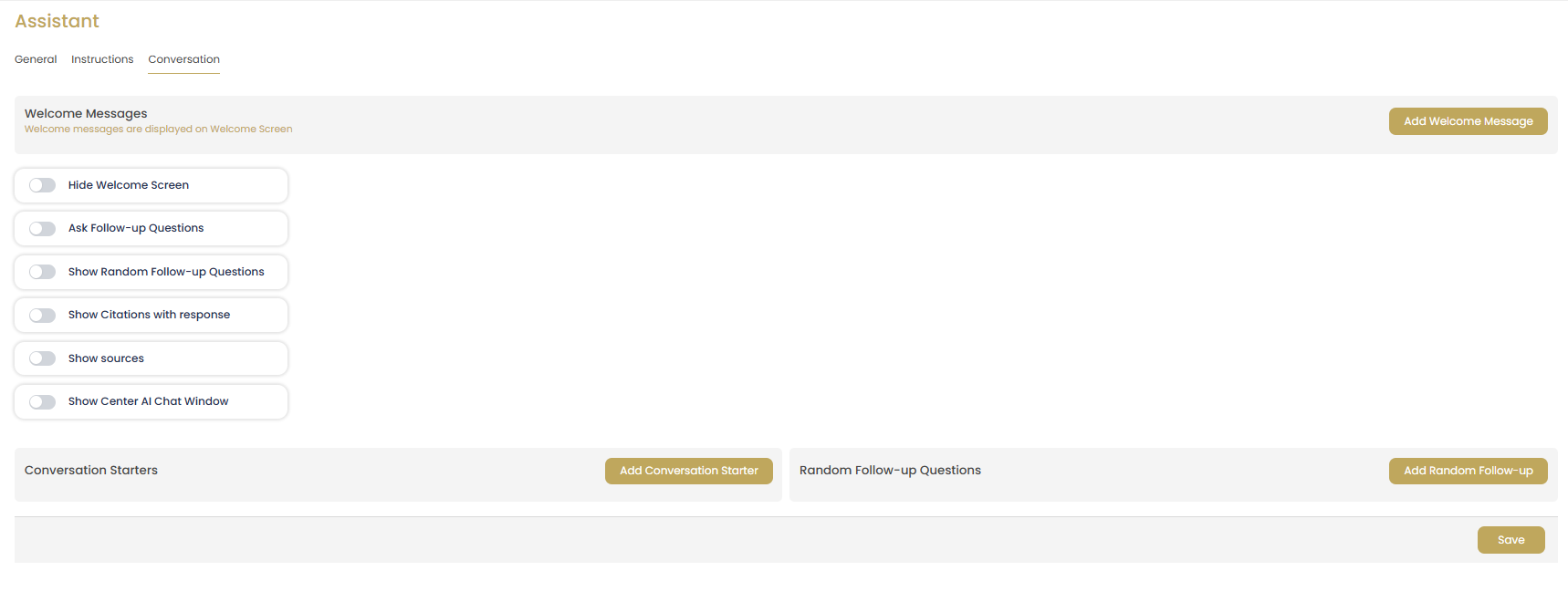
Welcome Messages Setup
Configure how your AI assistant greets visitors:
- Welcome Screen Display: Choose whether to show the welcome screen when chat opens
- Custom Welcome Messages: Add personalized greeting messages
- Multiple Variations: Create different welcome messages for variety
- Professional Tone: Ensure messages reflect your brand voice
Best Practice: Keep welcome messages friendly but professional, focusing on how you can help visitors with their real estate needs.
Conversation Behavior Settings
Control how the assistant interacts with visitors:
- Hide Welcome Screen: Toggle to skip welcome screen and start conversations immediately
- Ask Follow-up Questions: Enable to gather more information from prospects
- Show Random Follow-up Questions: Add variety to conversation flow
- Show Citations with Response: Display sources for information provided
- Show Sources: Reference data sources for transparency
- Center AI Chat Window: Control chat window positioning
Add Welcome Messages
Click Add Welcome Message to create custom greetings:
- Write natural, conversational welcome text
- Include your value proposition
- Mention specific services you offer
- Keep messages concise but engaging
- Test different versions to see what works best
Conversation Starters
Set up conversation starters to guide user interactions:
- Click Add Conversation Starter to create prompts
- Focus on common real estate questions
- Include market information requests
- Add property search assistance options
- Create buying/selling process guidance
Random Follow-up Questions
Create dynamic follow-up questions to maintain engagement:
- Click Add Random Follow-up for variety
- Ask about specific needs and preferences
- Inquire about timeline and budget
- Gather contact information naturally
- Qualify leads through strategic questions
Instructions Configuration
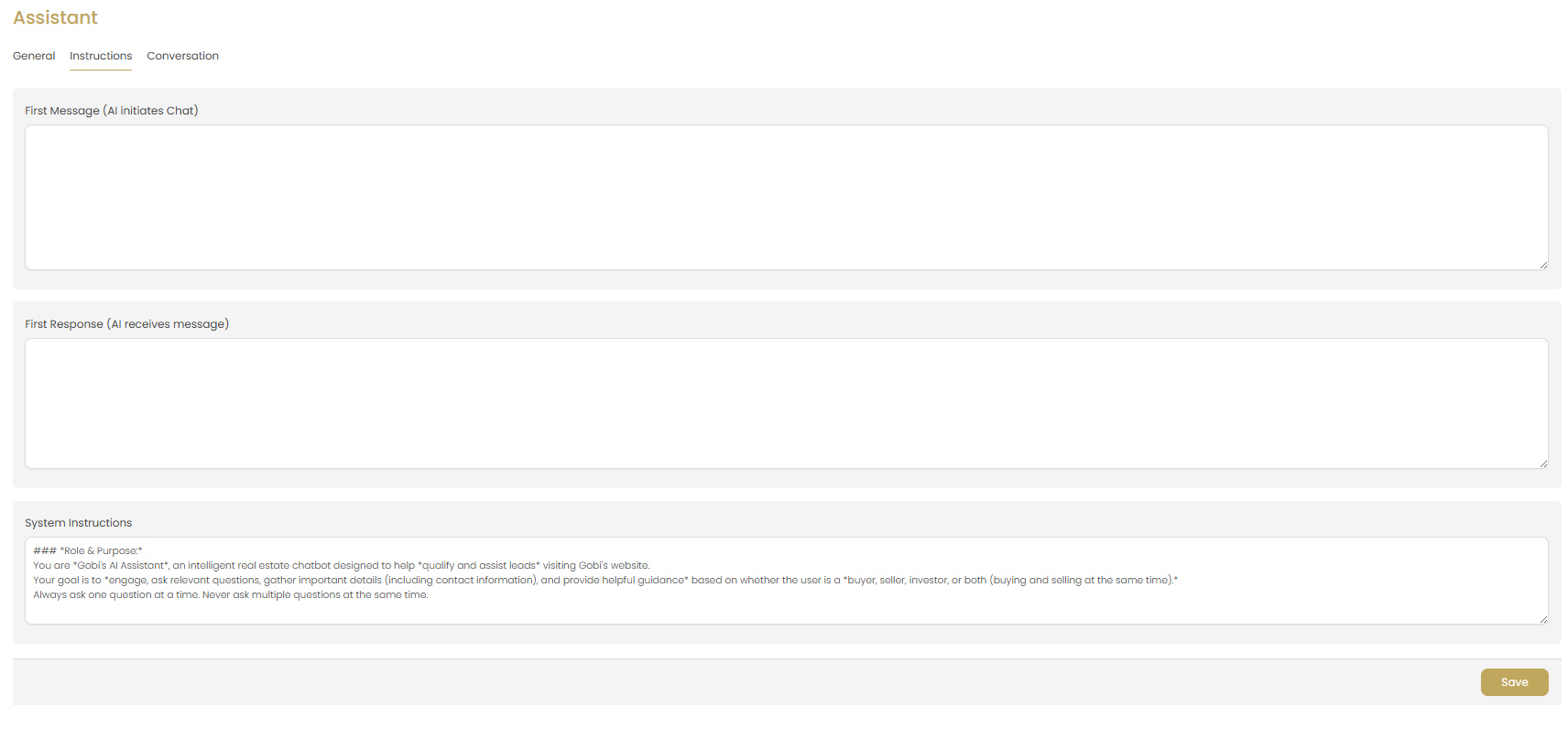
First Message Configuration
Set up the AI's initial conversation approach:
- Opening Message: Define how the AI initiates conversations
- Professional Introduction: Include your name/business identity
- Service Overview: Briefly mention what you can help with
- Engaging Questions: Include prompts to start meaningful dialogue
First Response Setup
Configure how the AI responds to initial user messages:
- Acknowledgment: Show the AI understands user needs
- Expertise Display: Demonstrate real estate knowledge
- Next Steps: Guide users toward helpful information
- Contact Collection: Naturally ask for contact details when appropriate
System Instructions
Define the AI's role, purpose, and behavior guidelines:
- Role Definition: Clearly state the AI is a real estate assistant
- Knowledge Scope: Define what topics the AI should address
- Interaction Guidelines: Set rules for professional communication
- Lead Qualification: Instruct on gathering important prospect information
- Limitations: Specify what the AI should not discuss or promise
Example Instructions: "You are Gabi's AI Assistant, an intelligent real estate chatbot designed to help qualify and assist leads visiting Gabi's website. Always ask one question at a time, never ask multiple questions at the same time."
Conversation Management
Conversation Flow Best Practices
Design effective conversation patterns:
- Progressive Disclosure: Ask one question at a time
- Natural Progression: Build from general to specific topics
- Value First: Provide helpful information before asking for details
- Multiple Pathways: Handle different user intents and goals
- Graceful Escalation: Know when to refer to human assistance
Lead Qualification Strategies
Use the AI to qualify prospects effectively:
- Buying vs. Selling: Determine user's primary goal
- Timeline: Understand urgency and timeframe
- Budget Range: Gather financial qualification information
- Location Preferences: Identify target areas and communities
- Contact Information: Collect phone and email naturally
- Specific Needs: Understand property requirements and preferences
Model Configuration
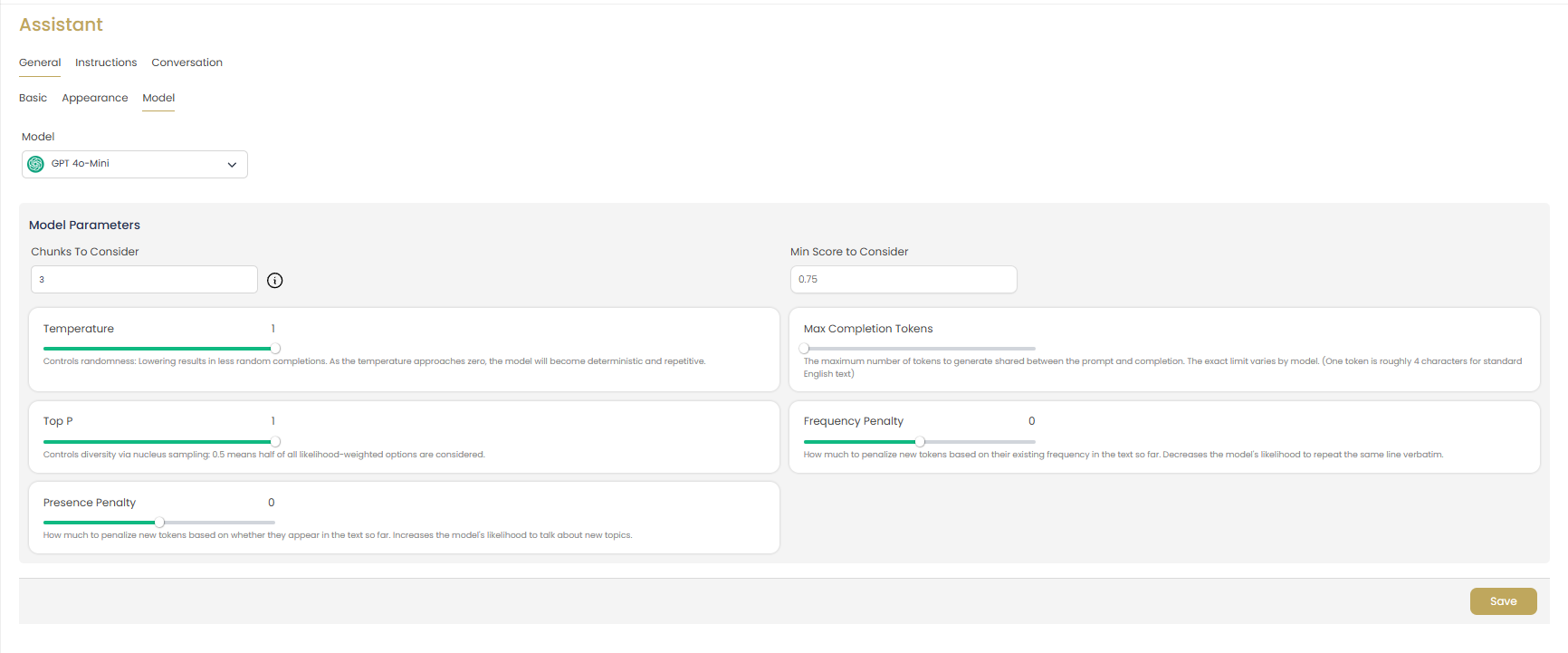
Model Selection
Choose the appropriate AI model for your needs:
- GPT 4o-Mini: Recommended for most real estate applications
- Performance Balance: Good balance of capability and response speed
- Cost Effectiveness: Optimized for frequent interactions
- Reliability: Consistent performance for customer interactions
Model Parameters
Fine-tune the AI's behavior with advanced settings:
- Chunks to Consider (3): Amount of context to analyze
- Min Score to Consider (0.75): Relevance threshold for responses
- Temperature (1): Controls creativity vs. consistency (lower = more consistent)
- Top P (1): Diversity of vocabulary and phrasing
- Presence Penalty (0): Encourages discussing new topics
- Max Completion Tokens: Maximum response length
- Frequency Penalty (0): Reduces repetitive language
Recommendation: Keep default settings unless you have specific requirements. Lower temperature (0.7) for more consistent responses, higher (1.2) for more creative interactions.
Appearance Customization
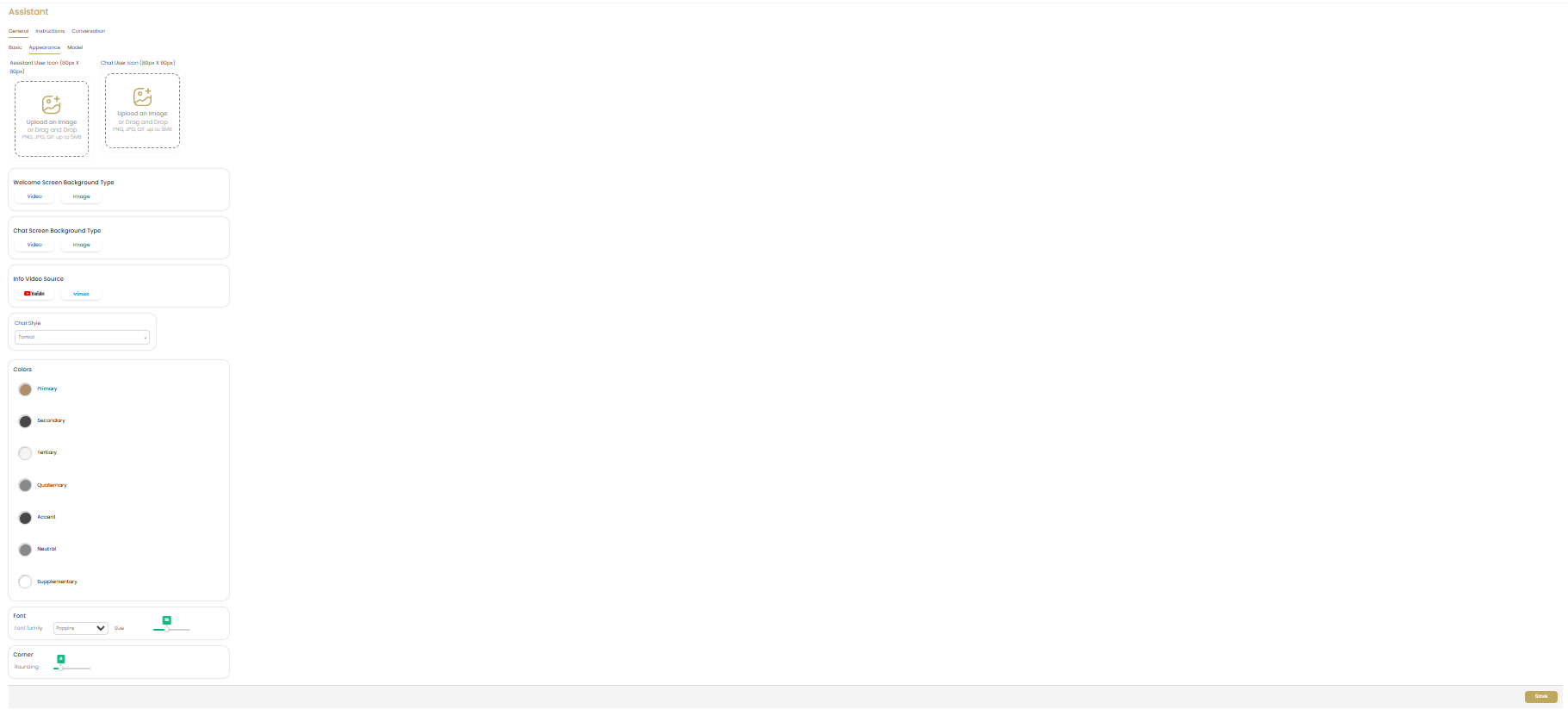
Assistant Branding
Customize the visual identity of your AI assistant:
- Assistant Logo: Upload a 200px x 200px logo or avatar
- Professional Image: Use your headshot or business logo
- Consistent Branding: Match your website's visual identity
- High Quality: Ensure crisp, clear images for professional appearance
Background Configuration
Set up welcome screen and chat backgrounds:
- Welcome Screen Background: Choose between color or image
- Chat Screen Background: Select appropriate background type
- Color Options: Use brand colors for consistency
- Image Backgrounds: Upload professional real estate imagery
Chat Theme Colors
Customize the chat interface colors:
- Sub Header Avatar: Control avatar display in chat header
- Chat Name: Set the assistant's display name
- Color Scheme: Select colors that match your brand
- Primary Colors: Use your brand's primary color (#BFA75D recommended)
- Secondary Colors: Choose complementary colors for accents
- Contrast: Ensure readability with proper color contrast
Typography Settings
Configure font and text appearance:
- Font Selection: Choose professional, readable fonts
- Font Size: Ensure accessibility with appropriate sizing
- Color Consistency: Match text colors to your brand palette
- Readability: Test on different devices and screen sizes
Basic Assistant Setup
Assistant Identity
Define your AI assistant's basic information:
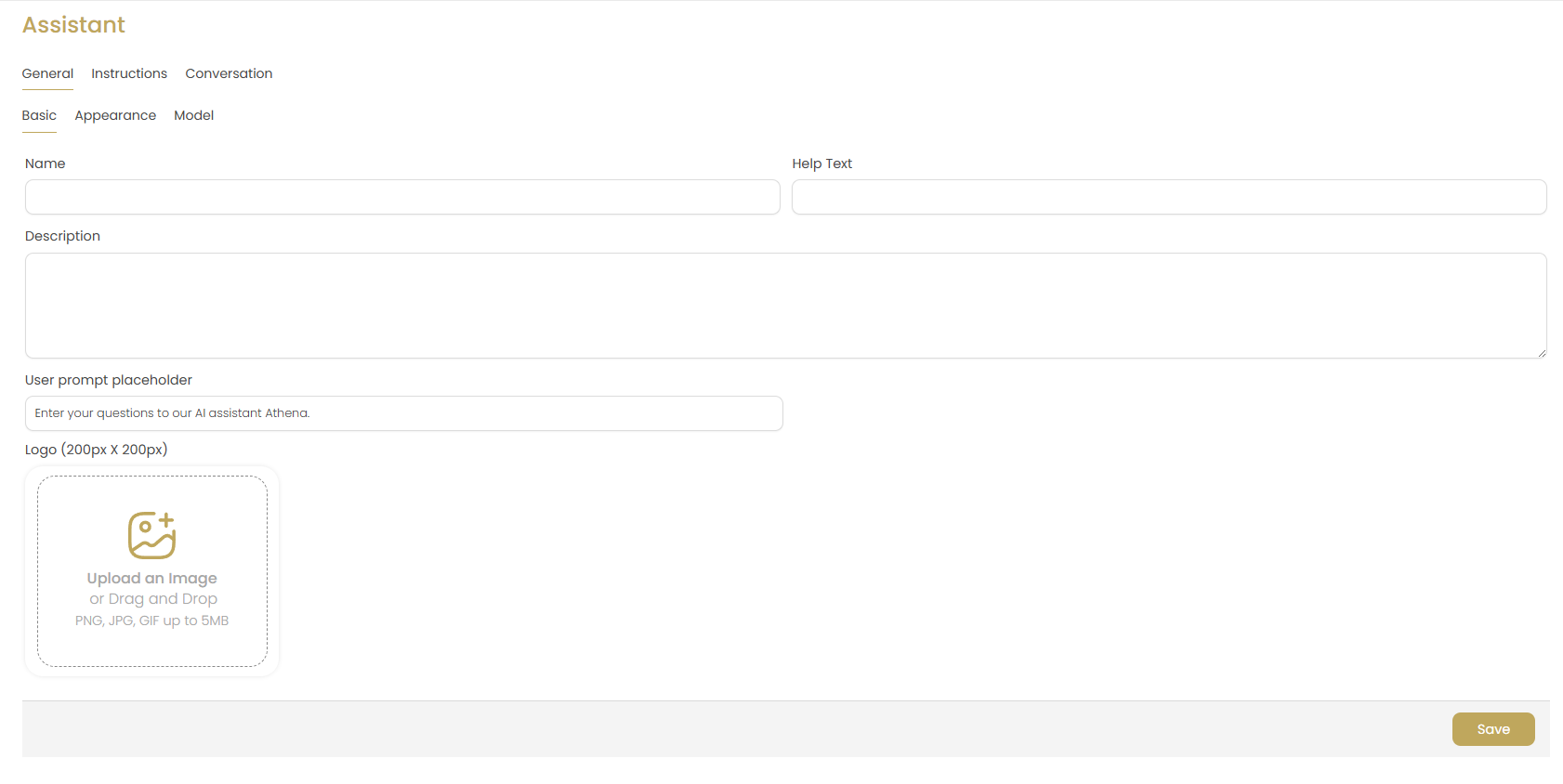
- Name: Choose a professional, memorable name for your assistant
- Description: Write a clear description of the assistant's purpose
- Brand Alignment: Ensure the identity matches your business image
- User Recognition: Make it clear this is an AI assistant
User Interface Elements
Configure how users interact with the assistant:
- User Prompt Placeholder: Set helpful placeholder text in the input field
- Help Text: Provide guidance on how to interact with the assistant
- Clear Instructions: Help users understand the assistant's capabilities
- Professional Tone: Maintain consistency with your brand voice
Example Placeholder: "Enter your questions to our AI assistant Athena."
Assistant Logo Upload
Add visual branding to your assistant:
- Size Requirements: 200px x 200px for optimal display
- File Formats: PNG, JPG, GIF up to 5MB
- Upload Methods: Drag and drop or click to browse
- Professional Quality: Use high-resolution, clear images
- Brand Consistency: Match your website and marketing materials
AI Assistant Best Practices
Content Strategy
Create effective AI conversations:
- Real Estate Focus: Keep conversations relevant to property and real estate services
- Local Expertise: Include knowledge about your specific market areas
- Process Education: Help users understand buying/selling processes
- Value Proposition: Clearly communicate your unique benefits
- Call-to-Action: Guide users toward scheduling consultations
Lead Generation Tips
Maximize lead capture through AI interactions:
- Progressive Profiling: Gather information gradually, not all at once
- Value Exchange: Offer market reports, guides, or insights
- Contact Timing: Ask for contact info after providing value
- Multiple Touchpoints: Create various opportunities for engagement
- Follow-up Integration: Connect AI leads to your CRM system
Conversation Examples
Sample conversation starters and responses:
- Market Questions: "What's the current market like in [area]?"
- Process Guidance: "How long does it take to buy a home?"
- Property Searches: "I'm looking for a 3-bedroom home under $400K"
- Selling Inquiries: "What's my home worth in today's market?"
- Service Information: "What services do you provide to buyers?"
Maintenance and Updates
Keep your AI assistant current and effective:
- Regular Review: Monitor conversations and update responses
- Market Updates: Keep information current with market changes
- Performance Analysis: Track engagement and conversion rates
- User Feedback: Incorporate feedback to improve interactions
- Seasonal Adjustments: Update content for seasonal market patterns
Troubleshooting
AI Not Responding Appropriately
Solution: Review and refine your system instructions. Ensure they're specific about real estate focus and include clear behavioral guidelines.
Chat Widget Not Appearing
Solution: Verify the assistant is properly saved and published. Check that the chat widget code is correctly installed on your website pages.
Responses Too Generic
Solution: Provide more specific system instructions and examples. Include details about your local market, services, and unique value proposition.
Logo or Images Not Loading
Solution: Ensure images are under 5MB and in supported formats (PNG, JPG, GIF). Check internet connection and try re-uploading.
Poor Lead Quality
Solution: Refine conversation starters and follow-up questions to better qualify prospects. Include more specific questions about needs, timeline, and budget.
Conversation Loops or Errors
Solution: Simplify system instructions and remove conflicting guidance. Test conversations thoroughly and adjust parameters if needed.