Social Channels
Connect and manage your social media accounts for seamless content publishing
Connecting Your Social Accounts
Before you can start posting content with Social Manager, you'll need to connect your social media accounts. This guide will walk you through connecting Facebook and Instagram accounts.
Important Note
To connect social media accounts, you must be an administrator of the accounts you wish to connect. For business pages, you'll need admin or editor access.
Connecting Facebook
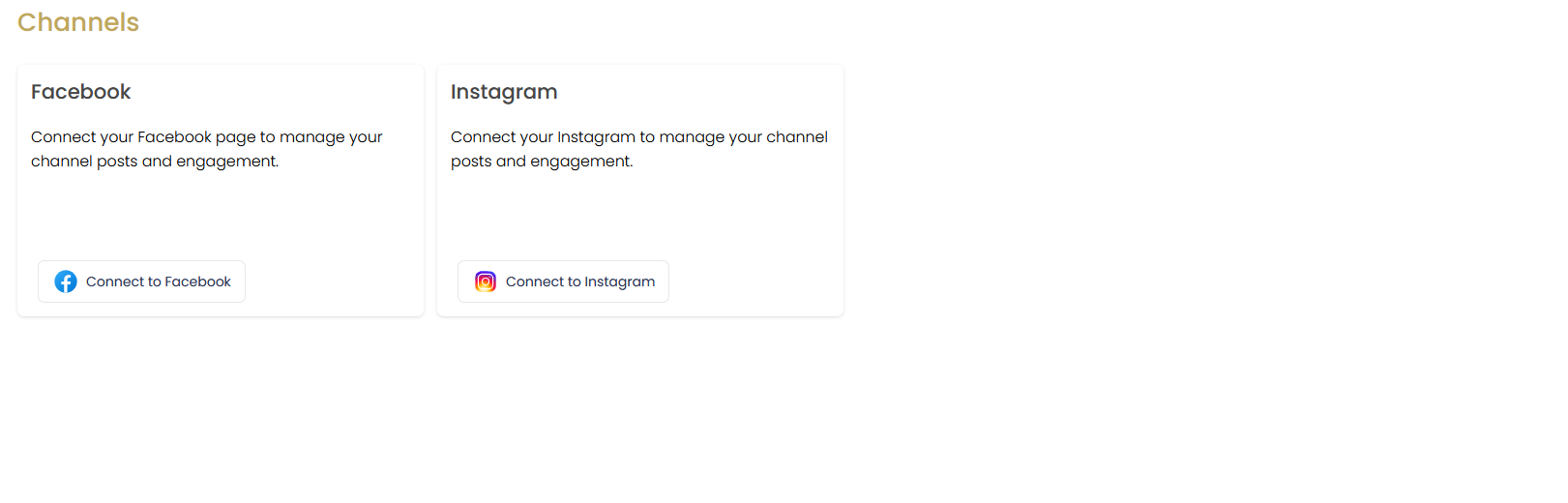
Step-by-Step Instructions
Navigate to Social Channels
In the Social Manager, click on the "Channels" tab in the left navigation menu.
Find the Facebook Section
Locate the Facebook connection card on the Channels page.
Connect Your Account
Click the button. A Facebook login window will appear.
Authorize Access
Log in to your Facebook account if prompted, then select the page(s) you want to connect and grant the required permissions.
Confirm Connection
After authorization, you'll be redirected back to Agent Teammate. Your Facebook page will now be listed as a connected channel.
What You Can Do With Facebook
- Post text updates, images, and videos to your business page
- Schedule posts for future publication
- Track engagement metrics on your posts
- Manage comments and messages (coming soon)
- Create and publish real estate listing announcements
Connecting Instagram
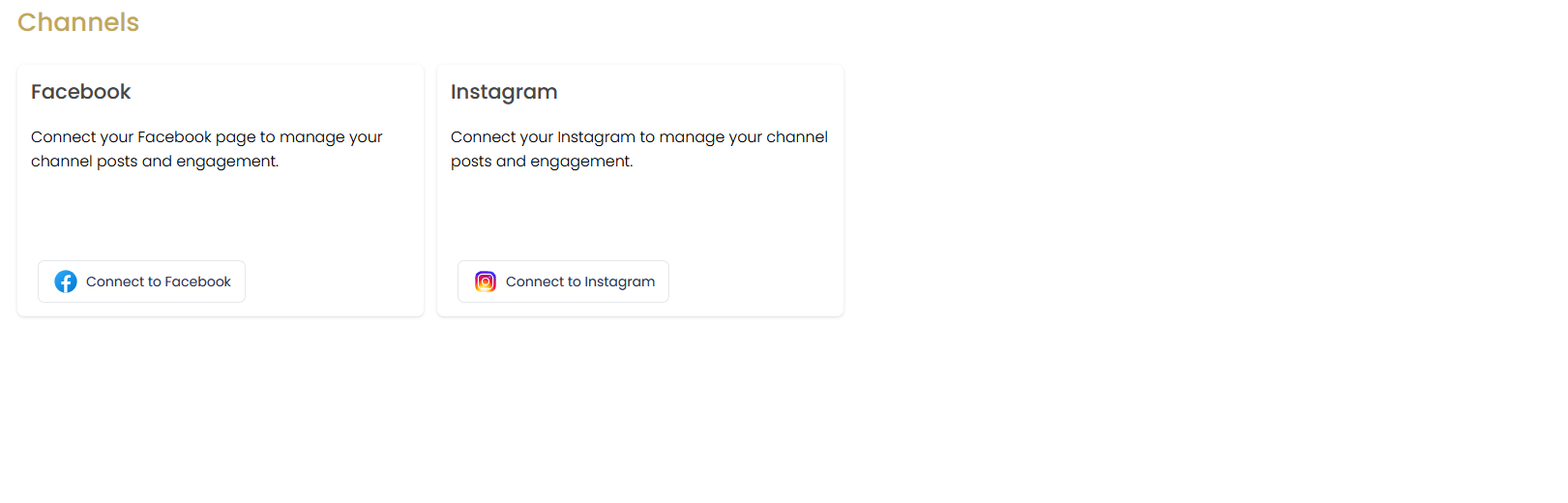
Step-by-Step Instructions
Navigate to Social Channels
In the Social Manager, click on the "Channels" tab in the left navigation menu.
Find the Instagram Section
Locate the Instagram connection card on the Channels page.
Important: Requirements
Ensure your Instagram account is a Business or Creator account and is connected to a Facebook page.
Connect Your Account
Click the button. You'll be guided through connecting your professional Instagram account.
Confirm Connection
After authorization, you'll be redirected back to Agent Teammate. Your Instagram account will now be listed as a connected channel.
Instagram Requirements
To connect Instagram for publishing, you must have:
- A Professional Account (Business or Creator)
- Your Instagram account connected to a Facebook page
- Admin access to the connected Facebook page
Managing Connected Accounts
Viewing Connection Status
The Channels page displays all your connected social media accounts with their current status. A green indicator shows active connections, while red indicates an issue with the connection.
Reconnecting Accounts
If a connection expires or encounters issues, you can easily reconnect:
Navigate to Channels
Go to the Channels page in the Social Manager.
Identify Problem Accounts
Look for accounts with a "Reconnect" button or error status indicator.
Reconnect
Click the button and follow the authentication steps again.
Removing Accounts
To disconnect a social media account:
Access Channel Settings
Go to the Channels page in the Social Manager.
Find Account
Locate the account you want to disconnect.
Disconnect
Click the "Disconnect" or settings icon.
Confirm
Confirm the disconnection when prompted.
Important
Disconnecting an account will prevent any scheduled posts from being published to that platform. Make sure to reschedule these posts after reconnecting the account.
Troubleshooting
I can't connect my Facebook page
Solution: Ensure you have admin access to the Facebook page and have granted all required permissions. Try logging out of Facebook completely, clearing your browser cache, and attempting the connection again using a different web browser. If issues persist, contact support.
My Instagram connection keeps failing
Solution: Verify your Instagram account is a Business or Creator account and is properly connected to a Facebook page. Ensure you have admin access to the connected Facebook page. Connect your Facebook page to Agent Teammate first, then try connecting Instagram again.
My connection suddenly stopped working
Solution: Social media connections can expire after 60 days or when permissions change. Simply reconnect your account by clicking the "Reconnect" button on the Channels page and going through the authentication process again.