Content Calendar
Visualize, plan, and organize your social media content schedule
Calendar Overview
The Content Calendar provides a visual representation of your social media posting schedule. It allows you to see all your scheduled posts across platforms in a monthly view, making it easier to maintain a consistent posting strategy and identify gaps in your content plan.
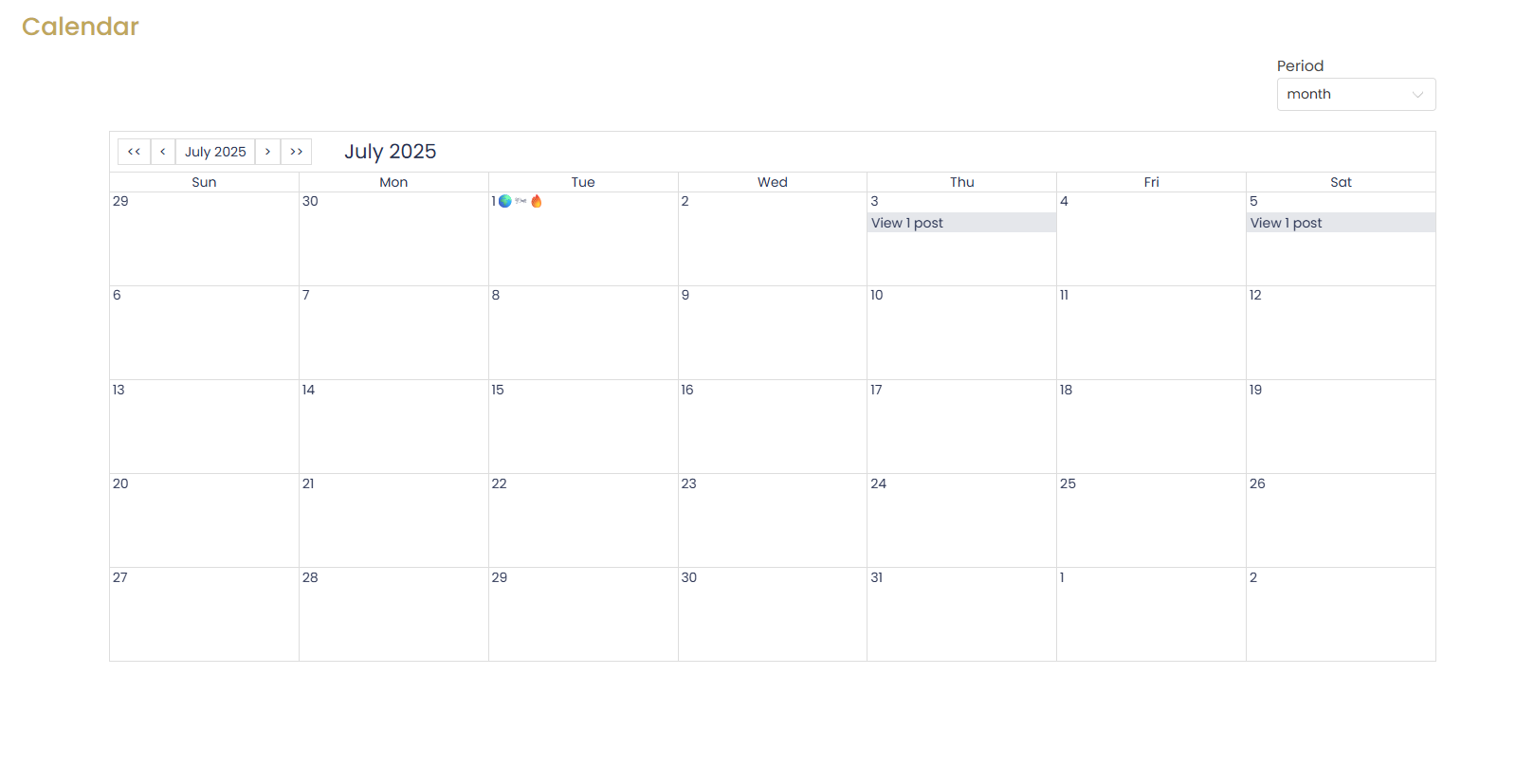
Calendar Elements
- Month Navigation: Buttons to navigate between months
- Day View: Shows posts scheduled for each day
- Post Indicators: Visual indicators showing posts with their platform icons
- Period Selector: Choose between month, week, or day view
- Create Post: Button to quickly create new content
Navigating the Calendar
Switching Views
The calendar offers different time period views to suit your planning needs:
- Month View: The default view showing the entire month
- Week View: Focused view of a single week with more detailed post information
- Day View: Detailed view of a single day's scheduled posts
To change views, use the "Period" dropdown menu in the top-right corner of the calendar.
Navigating Between Time Periods
Use the navigation arrows on either side of the current month/week/day to move forward or backward in time. You can also click the double arrows to jump to the previous/next month quickly.
Calendar Navigation Tips
- Click on any date to view details of posts scheduled for that day
- Use the "Today" button to quickly return to the current date
- Hover over any post indicator to see a preview of the post content
- Switch to week view for more detailed planning of your content strategy
Creating Posts from the Calendar
The Content Calendar allows you to create new posts directly from specific dates, making it easier to fill gaps in your content schedule.
Two Ways to Create Posts
From the Create Post Button
Click the "Create Post" button in the top-right corner of the calendar. This opens the post creation interface with the current date pre-selected.
From a Specific Date
Click directly on a date in the calendar and select "Create Post" from the popup menu. This opens the post creation interface with that specific date pre-selected.

Managing Posts in the Calendar
The Content Calendar provides several ways to interact with and manage your scheduled posts.
Viewing Post Details
To view details of a scheduled post:
Click on the post indicator in the calendar
A popup will appear showing the post content, scheduled time, and target platforms
From this popup, you can click "View Details" to see the full post information
Editing and Rescheduling Posts
To edit or reschedule a post from the calendar:
Click on the post indicator in the calendar
Select "Edit" from the popup menu
Make your desired changes to the content or schedule
Click "Save Changes" to update the post
Drag-and-Drop Rescheduling
For quick rescheduling, you can drag and drop posts to different dates in the calendar view. Simply click and hold a post indicator, then drag it to your desired date. A confirmation dialog will appear to finalize the change.
Content Strategy Planning
Use the Content Calendar as a strategic planning tool to maintain a consistent social media presence and maximize engagement.
Content Frequency Best Practices
Recommended Posting Frequency
- Facebook: 3-5 posts per week
- Instagram: 3-7 posts per week
These are general guidelines—your optimal frequency may vary based on your audience and content strategy.
Content Mix Strategies
For an effective social media strategy, mix different types of content throughout your calendar:
- Promotional Content (20%): Listings, open houses, and service promotions
- Educational Content (30%): Market updates, buyer/seller tips, and industry news
- Engagement Content (30%): Questions, polls, and community highlights
- Personal/Brand Content (20%): Team highlights, behind-the-scenes, and personal achievements
Content Planning Tip
Avoid scheduling too many posts on the same day or posting the same content across platforms simultaneously. This can lead to audience fatigue and reduced engagement.
Advanced Calendar Features
Content Categories and Color Coding
Organize your content strategy with categories and color coding:
Create content categories in the Calendar Settings (e.g., "Listings," "Market Updates," "Tips")
Assign each category a distinct color
When creating posts, assign them to the appropriate category
Posts will appear color-coded in your calendar for easy visual planning
Content Gaps Identification
The calendar highlights periods with no scheduled content, helping you maintain a consistent posting schedule:
- Days with no scheduled posts appear with a subtle indicator
- Use the "Content Coverage" report to identify weeks with insufficient content
- Click on empty dates to quickly create new posts
Calendar Planning Strategy
Set aside a few hours each month for content planning:
Review the upcoming month and identify important dates or events
Create a batch of posts for these key dates
Fill in content gaps to maintain a consistent posting schedule
Vary your content types throughout the week for better engagement
Troubleshooting
Posts aren't showing in the calendar
Solution: Check if you have the correct date range selected and ensure the posts are actually scheduled. Use the filter options to verify you're viewing the right platforms and post types.
Can't drag and drop posts to reschedule
Solution: Ensure you have edit permissions for the posts and that they haven't been published yet. Only scheduled posts can be rescheduled via drag and drop.
Calendar export is missing posts
Solution: Verify your export date range includes all the posts you want to export. Check that you haven't applied platform filters that might exclude certain posts from the export.