Contact Management
Comprehensive guide to managing clients, leads, and contacts in your real estate CRM
Overview
The Contact Management module is the heart of your Agent Teammate CRM system. It allows you to store, organize, and track all interactions with your clients, prospects, and business contacts. This powerful feature helps you maintain detailed records of everyone in your real estate network.
Dashboard Statistics
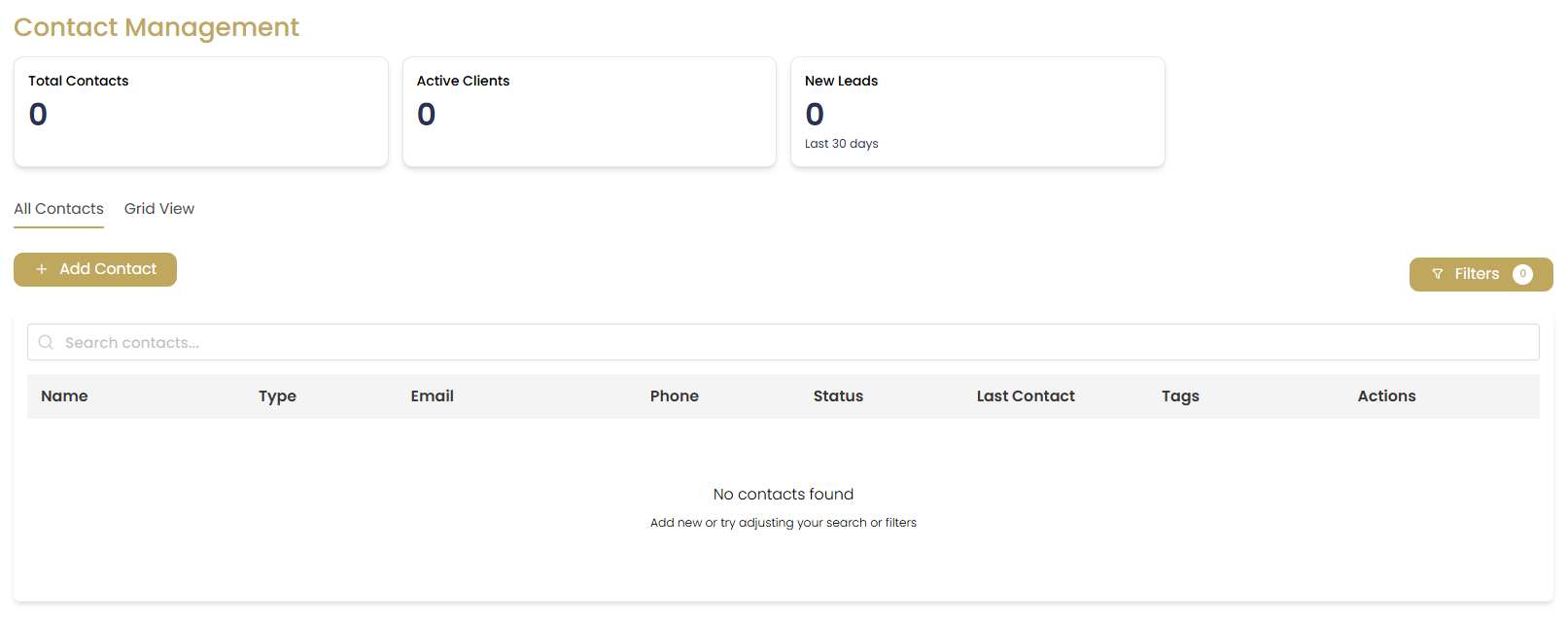
The contact dashboard provides real-time insights into your contact database:
- Total Contacts: Complete count of all contacts in your database
- Active Clients: Currently engaged clients with ongoing transactions
- New Leads: Recent leads from the past 30 days
- Follow-up Required: Contacts needing attention or follow-up
Adding New Contacts
Creating a Contact
Access Add Contact
Click the button in the top-right corner of the contacts page.
Enter Basic Information
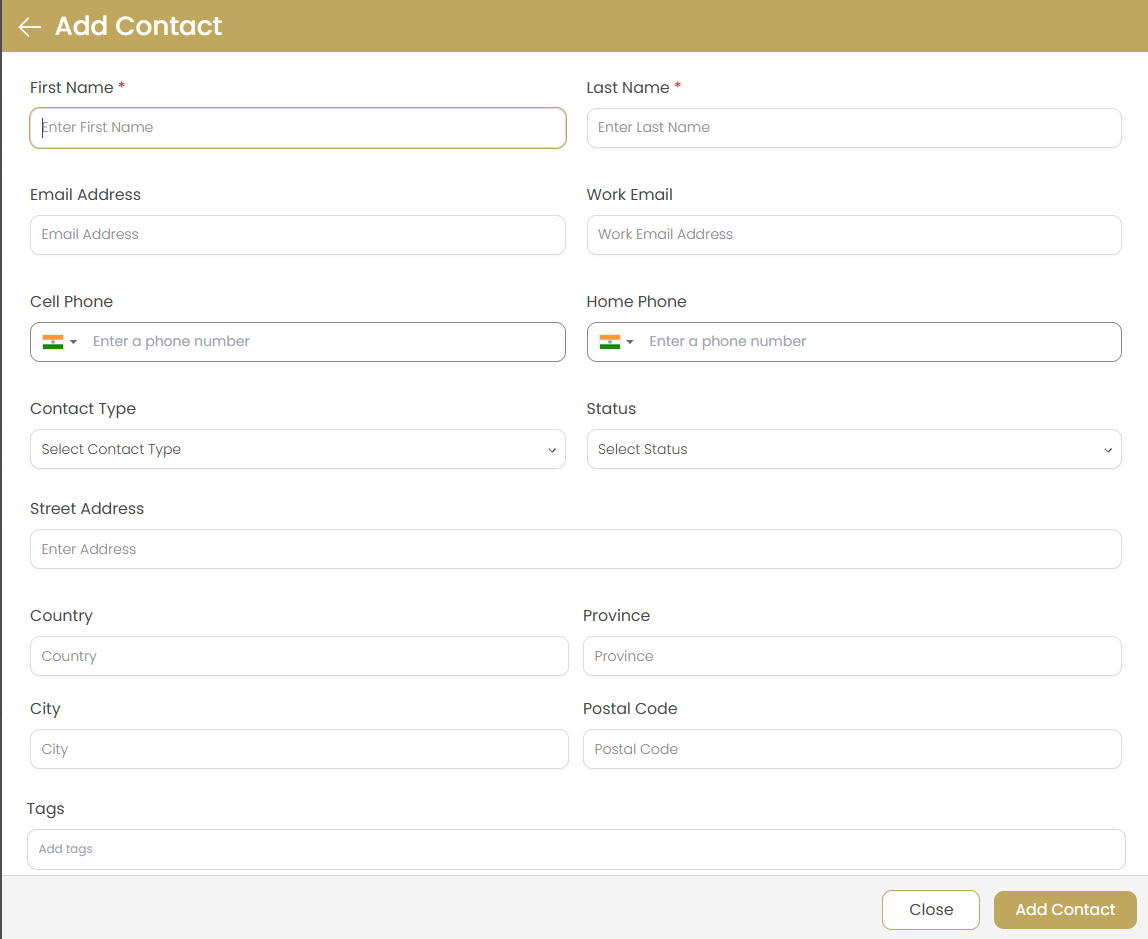
Fill in the essential contact details:
- First Name and Last Name (required)
- Email address (primary contact method)
- Phone number (mobile and/or office)
- Contact type (Client, Lead, Vendor, etc.)
Add Address Information
Include current address details for mailing and location purposes.
Set Contact Preferences
Configure communication preferences and assign tags for easy categorization.
Save the Contact
Click to add the contact to your database.
Contact Types and Categories
| Contact Type | Description | Use Cases |
|---|---|---|
| Client | Active customers with ongoing or completed transactions | Property buyers, sellers, current tenants |
| Lead | Potential customers who have shown interest | Website inquiries, referrals, open house visitors |
| Prospect | Qualified leads ready for active engagement | Pre-approved buyers, serious sellers |
| Vendor | Service providers and business partners | Inspectors, contractors, lenders, title companies |
| Referral Source | Contacts who provide referrals | Past clients, other agents, business partners |
Managing Contact Lists
Viewing and Searching Contacts
Browse All Contacts
The main contact list displays all contacts with key information including name, email, phone, and last activity date.
Use Search Filters
Apply filters to find specific contacts:
- Text Search: Search by name, email, or phone
- Contact Type: Filter by client, lead, vendor, etc.
- Tags: Filter by assigned tags
- Activity Date: Find contacts by last interaction
Sort Contact Lists
Click column headers to sort by name, date added, last activity, or contact type.
Advanced Search Tips
- Use quotation marks for exact phrase searches
- Combine multiple filters for precise results
- Save frequently used search criteria as custom views
- Use the global search Ctrl + K for quick lookups
Contact Actions and Management
Bulk Operations
Efficiently manage multiple contacts at once:
Select Multiple Contacts
Use checkboxes to select individual contacts or the header checkbox to select all visible contacts.
Choose Bulk Action
Available bulk actions include:
- Add tags to selected contacts
- Export contact information
- Delete multiple contacts
- Change contact types
- Send bulk emails
Execute Action
Confirm the bulk action and review the results summary.
Individual Contact Actions
For each contact, you can:
- View Details: Click the contact name to open the detailed contact page
- Quick Edit: Hover over contact info to make quick changes
- Send Email: Click the email icon to compose a message
- Call Contact: Click the phone icon to initiate a call (if integrated)
- Add to Deal: Associate contact with a new or existing deal
- Schedule Appointment: Create calendar events with the contact
Importing Contacts
CSV Import Process
Prepare Your Data
Ensure your CSV file includes standard headers like First Name, Last Name, Email, Phone, etc.
Access Import Tool
Click the button on the contacts page.
Upload CSV File
Select your prepared CSV file and upload it to the system.
Map Fields
Match CSV columns to Agent Teammate contact fields. The system will auto-detect many common fields.
Review and Import
Review the import preview and click to complete the process.
Import Guidelines
- Maximum file size: 10MB
- Supported format: CSV only
- Email addresses must be unique
- Review duplicate handling options before importing
Contact Tags and Organization
Using Tags Effectively
Tags help you categorize and organize contacts for better management:
- Lead Source Tags: "Website", "Referral", "Open House", "Social Media"
- Interest Tags: "First Time Buyer", "Investment Property", "Luxury Market"
- Status Tags: "Hot Lead", "Follow-up Required", "Not Ready", "Converted"
- Geographic Tags: "Downtown", "Suburbs", "Waterfront", "Rural"
Creating Custom Tags
Add New Tag
While editing a contact, type a new tag name in the tags field.
Choose Tag Color
Assign colors to tags for visual organization and quick identification.
Apply to Contacts
Add the new tag to relevant contacts individually or through bulk operations.
Contact Communication History
Agent Teammate CRM automatically tracks all interactions with your contacts:
Tracked Activities
- Email communications (sent and received)
- Phone calls (when integrated with phone system)
- Appointments and meetings
- Property showings
- Document sharing and downloads
- Website activity and property views
Adding Manual Activities
Open Contact Details
Navigate to the specific contact's detail page.
Access Activity Timeline
Click on the "Timeline" or "Activity" tab to view communication history.
Add Activity
Click to record manual interactions.
Enter Activity Details
Select activity type, date, and add detailed notes about the interaction.
Best Practices
Data Quality Management
- Consistent Naming: Use standardized name formats and spelling
- Complete Profiles: Fill in all available contact information
- Regular Updates: Keep contact information current and accurate
- Duplicate Prevention: Check for existing contacts before adding new ones
Lead Management
- Quick Response: Follow up with new leads within 15 minutes when possible
- Lead Scoring: Use tags to indicate lead quality and priority
- Nurture Campaigns: Set up automated follow-up sequences for different lead types
- Conversion Tracking: Update contact types as leads progress through your sales funnel
Privacy and Compliance
- Obtain proper consent before adding contacts to marketing lists
- Provide easy opt-out options for email communications
- Regularly clean your database of inactive or unengaged contacts
- Follow local real estate regulations for client data management
Troubleshooting
Cannot Find a Contact
Solution: Try different search terms, check spelling, or browse by contact type. The contact might be tagged differently than expected.
Duplicate Contacts Created
Solution: Use the merge contacts feature to combine duplicate records. Always search before adding new contacts.
Import Failed
Solution: Check CSV format, ensure required fields are present, and verify file size limits. Review error messages for specific issues.