SMS Messaging
Complete guide to sending, receiving, and managing SMS messages with customers and clients
SMS Messaging Overview
Agent Teammate's SMS messaging system provides a professional messaging interface for communicating with customers and clients. The system uses your purchased phone numbers to send and receive text messages with full conversation tracking and organized contact management.
Key SMS Features
- Multi-number phone number selection via dropdown
- Organized contact list with conversation history
- Real-time message composition and sending
- Message delivery status tracking (Sent/Delivered)
- Conversation threading with individual contacts
- Search functionality for contacts and messages
- Lists and Contacts organization tabs
- Professional messaging interface
SMS Interface Screenshots
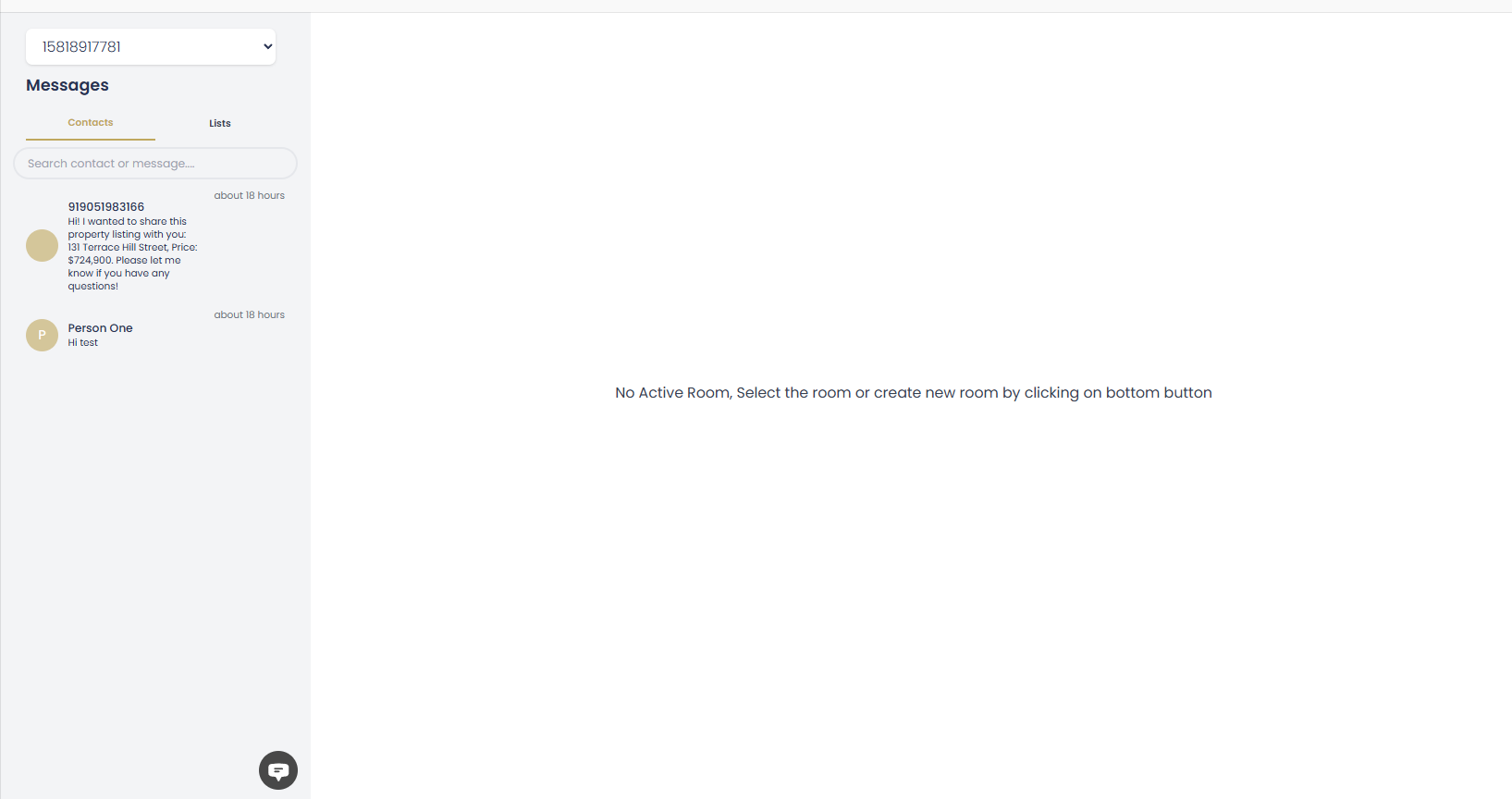
Messages List with Contact Organization
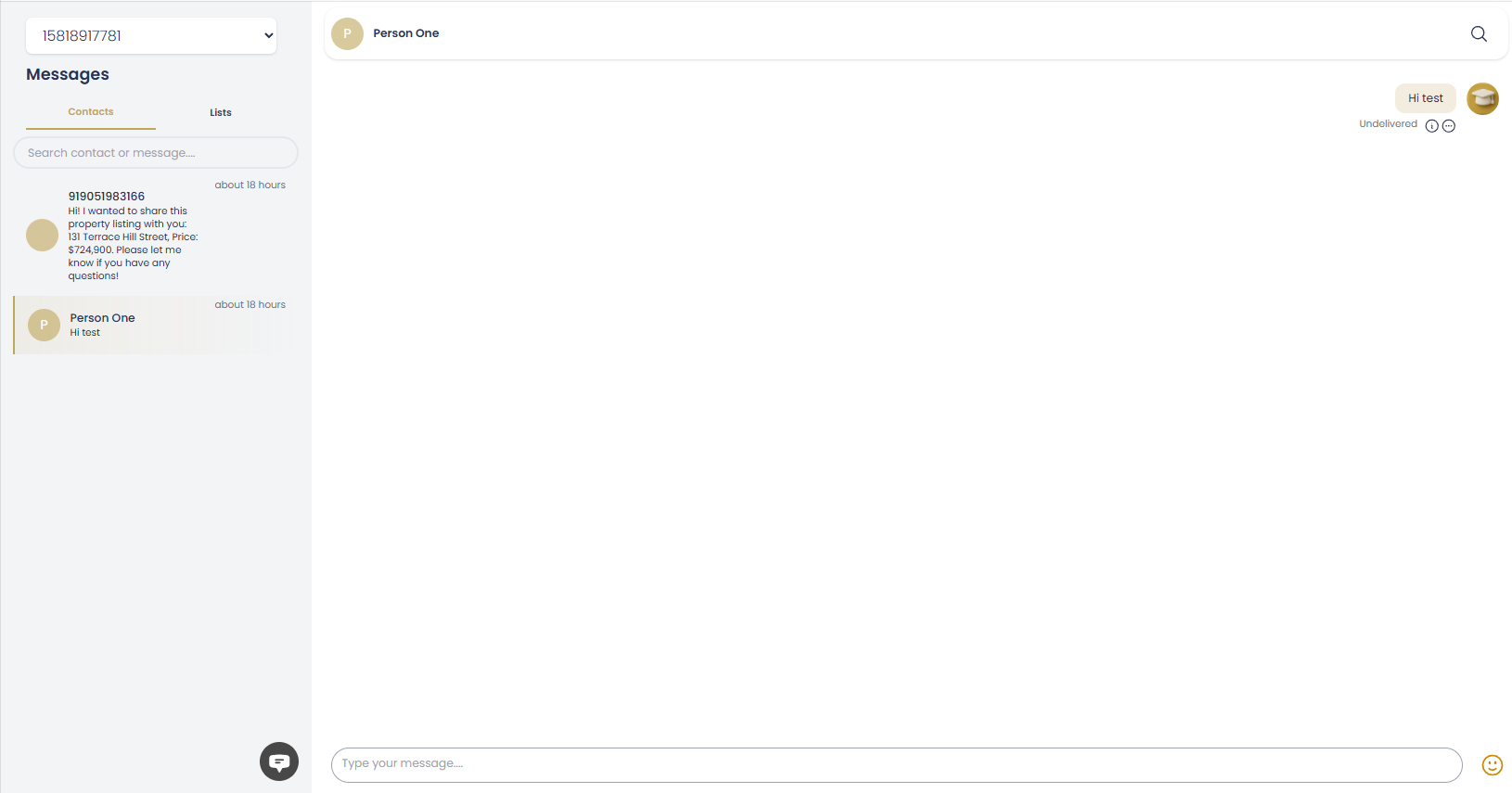
Active Conversation with Message Composition
Using the SMS Interface
Phone Number Selection
At the top of the Messages interface, you'll find a dropdown to select your active phone number:
- Number Dropdown: Click the dropdown (e.g., "15618917781") to switch between your available phone numbers
- Active Number Display: The currently selected number is displayed prominently
- Multi-Number Support: Easily switch between different business phone numbers
- Number Organization: All your purchased numbers are accessible from one interface
Contact Organization
The left sidebar provides two main organization methods:
- Contacts Tab: View individual contacts with conversation history
- Lists Tab: Organize contacts into groups or categories
- Search Function: Use "Search contact or message..." to quickly find conversations
- Recent Activity: Contacts are ordered by most recent message activity
- Message Previews: See the latest message content in the contact list
- Timestamp Display: View when the last message was sent or received
Managing Conversations
Contact Selection
- Click on any contact from the left sidebar to open conversation
- Contact name and phone number displayed in header
- Avatar or initial icons for easy identification
- Quick access to contact information
Conversation View
- Full conversation history in chronological order
- Clear message threading and organization
- Message status indicators (Sent, Delivered)
- Professional chat-style interface
Sending Messages
The message composition area is located at the bottom of the conversation:
- Message Input: Type your message in the "Type your message..." field
- Send Options: Click the send button or use keyboard shortcuts
- Character Counter: Monitor message length for SMS limits
- Emoji Support: Add emojis using the emoji picker button
- Professional Interface: Clean, distraction-free composition area
Message Status & Delivery
Delivery Tracking
Agent Teammate provides detailed message status information accessible through the message info panel:
- Sent Status: Confirms when message was successfully sent from your system
- Delivered Status: Shows when message was delivered to recipient's device
- Timestamp Tracking: Exact time stamps for both sent and delivered events
- Message Info Panel: Click on messages to view detailed delivery information
- Status Indicators: Visual indicators show current message status
- Undelivered Alerts: System alerts for messages that fail to deliver
Understanding Message Timing
Message timing and delivery information helps track communication effectiveness:
- Sent Time: When you sent the message (e.g., "07:06 PM")
- Delivered Time: When recipient's carrier confirmed delivery
- Response Time: Track how quickly contacts respond to messages
- Business Hours: Monitor best times for customer engagement
Message Status Details
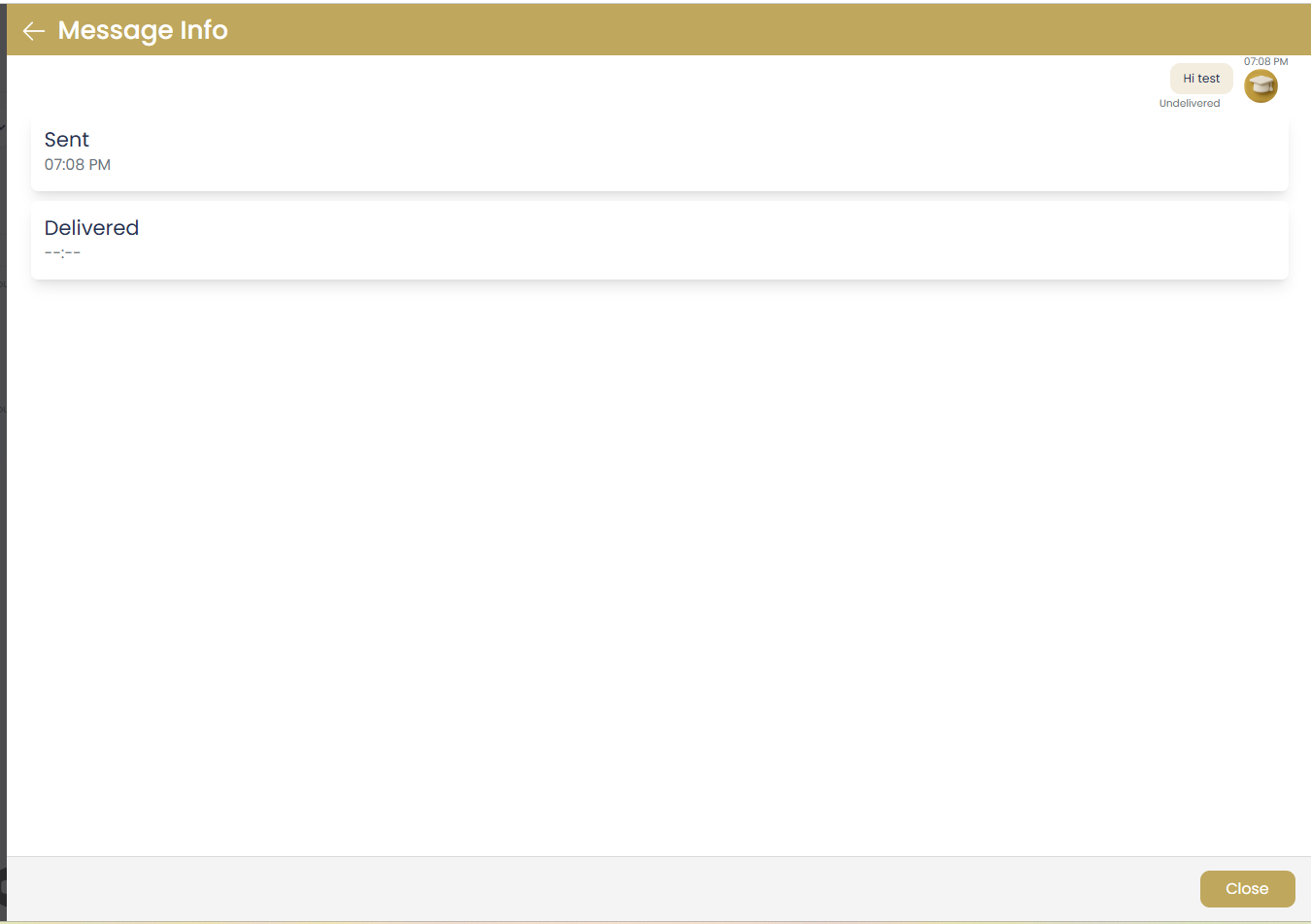
Message Info Panel with Delivery Status
The message info panel shows detailed timing information including when messages were sent (07:06 PM) and delivered, helping you track communication effectiveness.
Finding Conversations & Contacts
Search and Organization
Efficiently locate contacts and messages using the built-in search and organization features:
- Search Bar: Use "Search contact or message..." to find specific conversations
- Contact Names: Search by contact name (e.g., "Person One")
- Phone Numbers: Search by partial or complete phone numbers
- Message Content: Find conversations containing specific words or phrases
- Recent Activity: Contacts automatically sorted by latest message activity
- Contact Lists: Use the "Lists" tab to organize contacts into groups
No Active Room Status
Getting Started: When you first access the SMS interface, you may see "No Active Room, Select the room or create new room by clicking on bottom button." Simply click on any contact from the left sidebar to start a conversation.
Best Practices for SMS Communication
Professional Messaging Guidelines
- Select Appropriate Numbers: Use the phone number dropdown to choose the most relevant number for each conversation
- Organized Conversations: Keep the contact list organized by regularly reviewing and categorizing conversations
- Timely Responses: Monitor message delivery status and respond promptly to customer inquiries
- Professional Tone: Maintain business-appropriate language in all SMS communications
- Search Efficiency: Use the search function to quickly locate past conversations and reference points
- Status Monitoring: Check message info panels to ensure important messages are delivered
Interface Tips
- Contact Organization: Use both Contacts and Lists tabs to organize your communications effectively
- Multi-Number Management: Switch between phone numbers based on client relationships or business functions
- Message History: Review conversation history before responding to maintain context
- Search Function: Utilize search to find specific conversations, especially with high message volumes
- Status Awareness: Pay attention to delivery status to ensure critical messages reach recipients
Common SMS Tasks
| Task | Steps | Location | Notes |
|---|---|---|---|
| Switch Phone Numbers | Click dropdown at top → Select number | Messages interface header | Changes active number for all conversations |
| Start New Conversation | Search contact → Click name → Type message | Left sidebar contact list | Use search to find existing contacts |
| Send Message | Type in message field → Click send or press Enter | Bottom of conversation view | Check delivery status after sending |
| Check Message Status | Click on message → View info panel | Conversation view | Shows sent/delivered timestamps |
| Search Conversations | Use "Search contact or message..." field | Left sidebar top | Searches names, numbers, and content |
| Organize Contacts | Use Contacts/Lists tabs → Create groups | Left sidebar tabs | Keep conversations organized |
Interface Layout & Navigation
Complete Interface Overview
Full SMS Messaging Interface Layout
Main Interface Components
The SMS messaging interface is organized into several key areas for efficient communication management:
- Top Header: Phone number selection dropdown (e.g., "15618917781")
- Left Sidebar: Contact list with Contacts/Lists tabs and search functionality
- Center Panel: Active conversation view with message history
- Bottom Area: Message composition field with send controls
- Contact Cards: Show contact names, phone numbers, message previews, and timestamps
Contact List Features
- Contact names with avatar initials
- Phone numbers displayed below names
- Latest message preview text
- Time stamps (e.g., "about 18 hours")
- Visual indicators for message status
- Search bar for quick contact lookup
Conversation Area
- Contact name and info in header
- Message history in chat format
- Message delivery status tracking
- Professional messaging interface
- Clear message threading
- Easy-to-use composition area