Billing & Invoices
Complete guide to managing subscription plans, payment methods, billing history, and invoice generation
Overview
The Billing & Invoices section provides comprehensive management of your Agent Teammate subscription, payment methods, and billing history. Monitor your plan usage, manage payment information, and access all invoices through three main tabs: Plan Overview, Billing, and Invoices.
Administrator Access Required
Billing and payment management requires administrator privileges. Only users with administrator roles can view billing information, add payment methods, and access invoices.
- View current plan details and credit usage
- Manage payment methods and billing information
- Access and download invoices
- Monitor subscription and credit consumption
Plan Overview
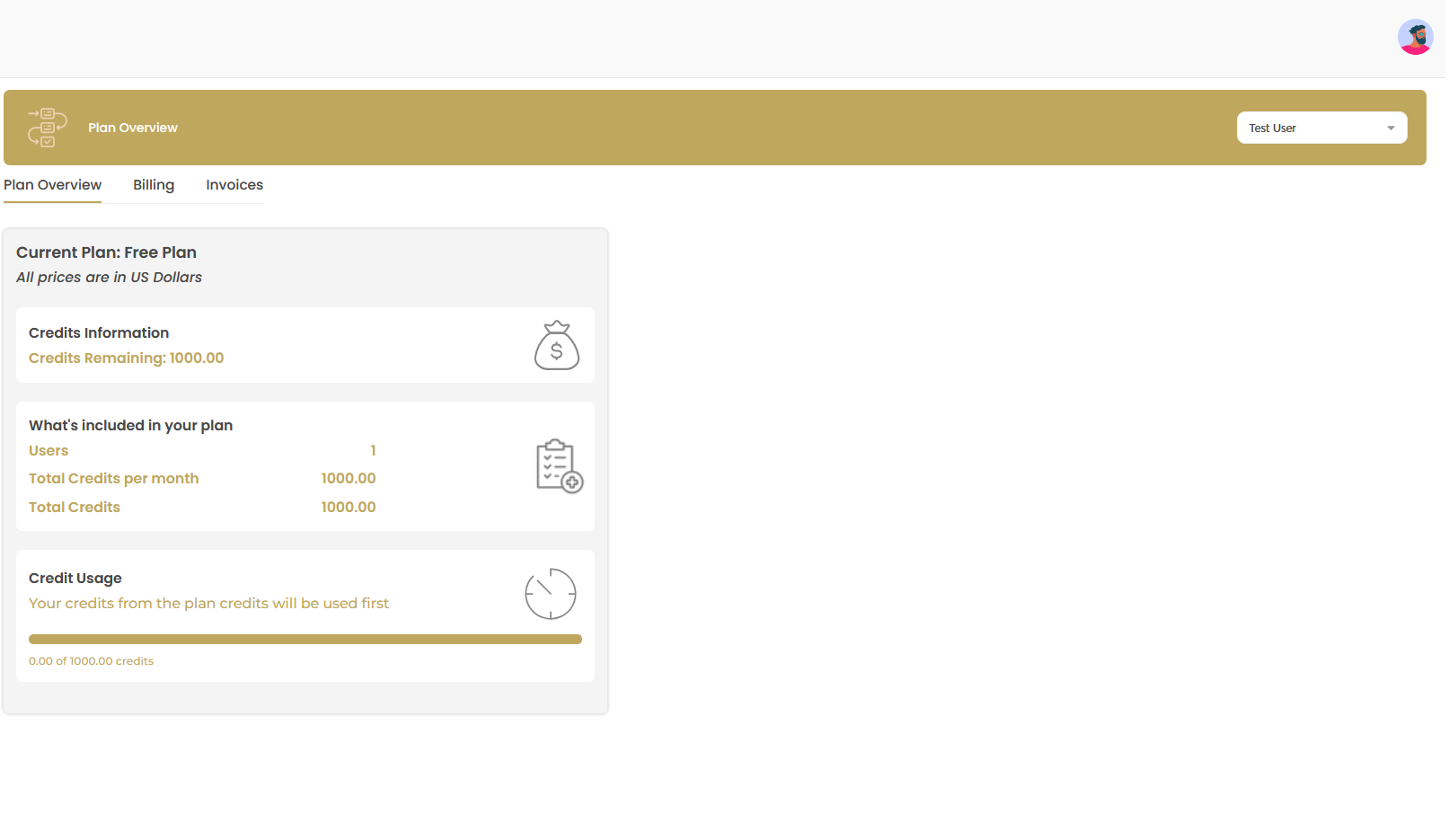
The Plan Overview tab displays your current subscription details, credit allocation, and usage information to help you monitor your workspace's consumption and plan limits.
Current Plan Information
Access Plan Overview
Navigate to Workspace Admin → Billing & Invoices and ensure you're on the Plan Overview tab.
Review Plan Details
The plan overview displays key information about your subscription:
- Current Plan: Shows your active plan (e.g., Free Plan)
- Currency: All prices displayed in US Dollars
- Plan Status: Active subscription status
Credits Information
Monitor your credit allocation and remaining balance:
| Credit Metric | Description | Purpose |
|---|---|---|
| Credits Remaining | Current available credit balance | Shows how many credits you have left to use |
| Total Credits per Month | Monthly credit allocation | Number of credits your plan provides each month |
| Total Credits | Overall credit limit | Maximum credits available in your account |
What's Included in Your Plan
Review the features and limitations of your current subscription:
- Users: Number of team members allowed (shown as "1" for Free Plan)
- Total Credits per Month: Monthly allocation (e.g., 1000.00 credits)
- Total Credits: Overall credit limit (e.g., 1000.00 credits)
Credit Usage Tracking
Monitor your credit consumption with the visual usage indicator:
Understanding Credit Usage
- Usage Bar: Visual representation of credits consumed
- Priority System: Plan credits are used before any additional credits
- Real-time Updates: Usage updates as you consume credits across applications
- Monthly Reset: Credits typically reset at the beginning of each billing cycle
Payment Methods
Manage your payment methods to ensure uninterrupted service and smooth billing processes. Add, update, or remove payment methods as needed.
Adding Payment Methods
Access Billing Tab
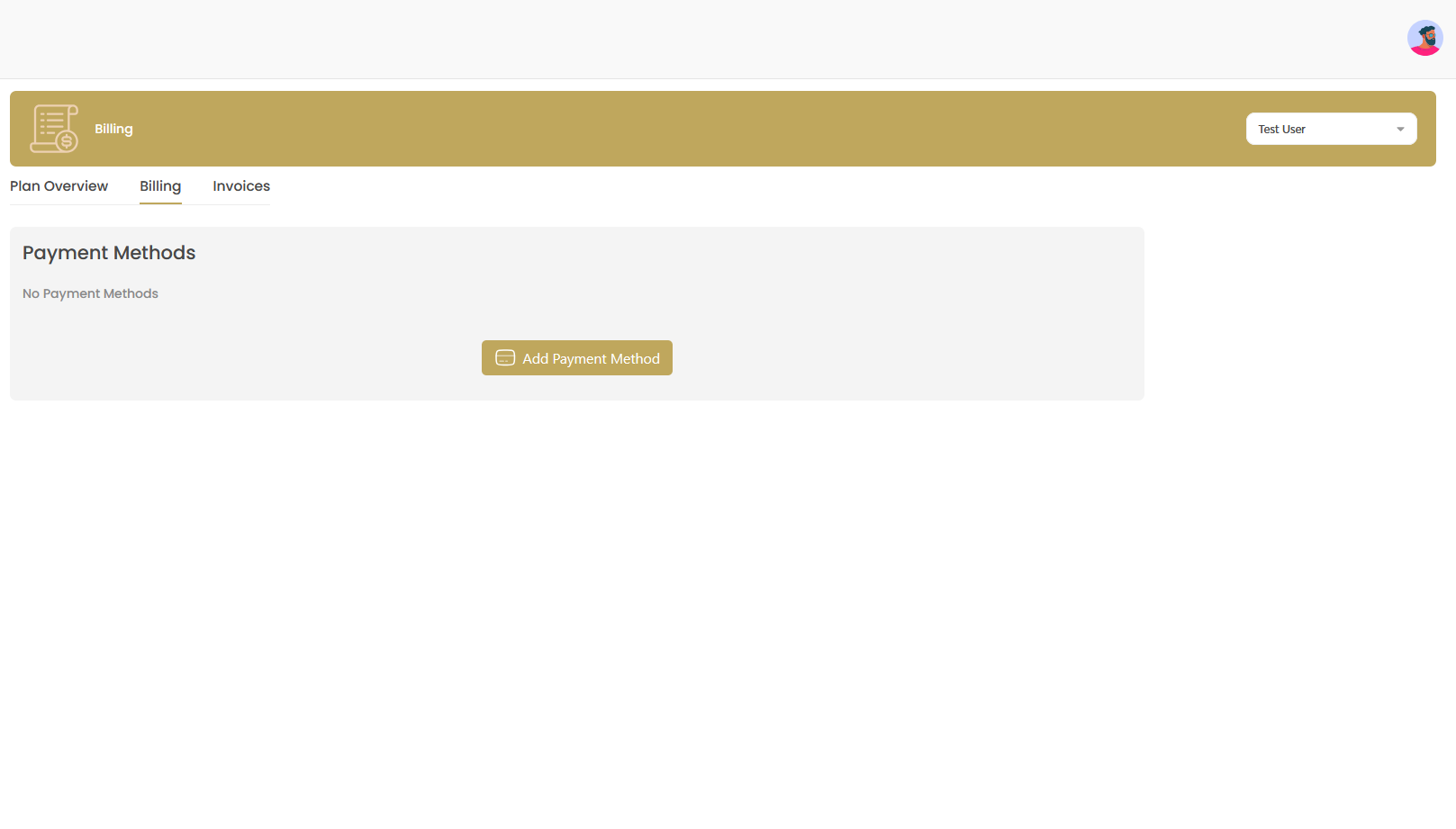
Navigate to the Billing tab in the Billing & Invoices section.
Add Payment Method
Click the button to open the payment form.
Enter Card Information
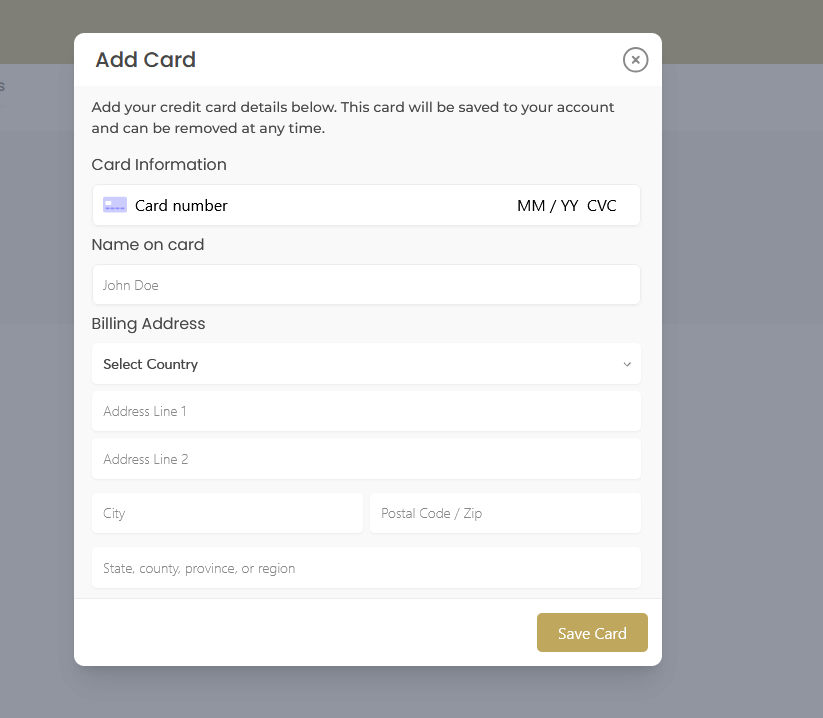
Complete the credit card details form:
- Card Number: Enter your credit card number
- Expiry Date: MM/YY format
- CVC: Security code from the back of your card
- Name on Card: Cardholder's full name as it appears on the card
Billing Address Information
Provide complete billing address details:
- Country: Select your country from the dropdown
- Address Line 1: Street address
- Address Line 2: Apartment, suite, or unit number (optional)
- City: City name
- Postal Code/Zip: Postal or ZIP code
- State/Province: State, county, province, or region
Save Payment Method
Click to securely store your payment information.
Payment Method Management
Once payment methods are added, you can:
- View Saved Cards: See masked card numbers and expiry dates
- Set Default Payment: Choose which card to use for automatic billing
- Update Information: Modify billing address or card details
- Remove Cards: Delete payment methods no longer needed
Payment Security
- All payment information is encrypted and securely stored
- Card details can be removed at any time
- Regular security audits ensure data protection
- Only administrators can view and manage payment methods
Invoice Management
Access, download, and manage all your billing invoices from the Invoices tab. Keep track of payment history and maintain records for accounting purposes.
Accessing Invoices
Navigate to Invoices Tab
Click on the Invoices tab in the Billing & Invoices section.
Review Invoice List
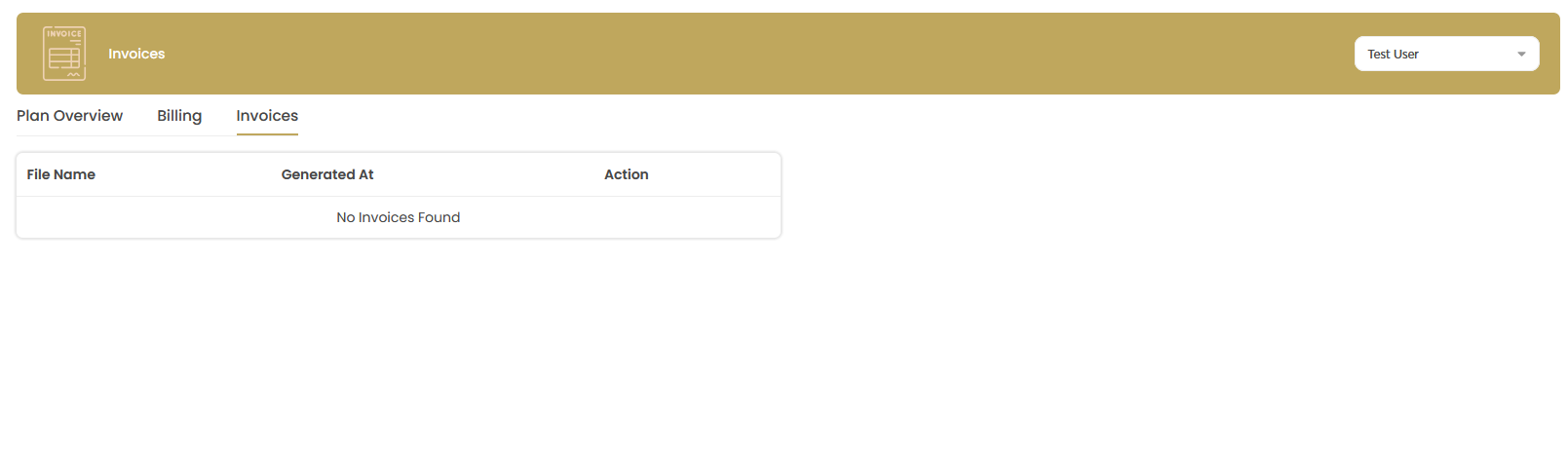
The invoice table displays:
- File Name: Invoice identifier and number
- Generated At: Date and time when invoice was created
- Action: Download or view options for each invoice
Download Invoices
Click the action button next to any invoice to download it for your records.
Invoice Information
| Column | Description | Details |
|---|---|---|
| File Name | Invoice identifier | Unique name for each billing document |
| Generated At | Creation timestamp | Date and time when the invoice was generated |
| Action | Available operations | Download, view, or print invoice options |
Invoice Management Tips
- Regular Downloads: Download invoices monthly for your accounting records
- File Organization: Save invoices with clear naming conventions for easy retrieval
- Backup Copies: Maintain backup copies in secure cloud storage
- Tax Records: Keep invoices for tax purposes according to local regulations
Advanced Billing Management
Plan Upgrades and Changes
When you need to modify your subscription:
Upgrading Your Plan
- Contact Support: Reach out for plan upgrade options
- Pro-rated Billing: Changes are typically pro-rated for the current billing cycle
- Credit Adjustments: Credit allocations update immediately upon plan change
- User Limits: Higher-tier plans allow more team members
Billing Cycle Management
| Billing Aspect | Description | Frequency |
|---|---|---|
| Monthly Billing | Standard subscription charges | Every 30 days from subscription start |
| Credit Reset | Monthly credit allocation renewal | Beginning of each billing cycle |
| Usage Tracking | Real-time credit consumption monitoring | Continuous throughout the month |
| Invoice Generation | Automatic billing document creation | At the end of each billing period |
Troubleshooting Common Issues
Billing and Payment Problems
| Issue | Possible Cause | Solution |
|---|---|---|
| Payment method declined | Insufficient funds or card restrictions | Contact bank or add alternative payment method |
| Cannot add payment method | Incorrect billing information | Verify all fields match your bank records exactly |
| Credits not updating | Billing cycle timing or system delay | Wait for next billing cycle or contact support |
| Missing invoices | Free plan or no billable events | Invoices generate only for paid services and plans |
| Billing address errors | Incomplete or incorrect address details | Ensure all required fields are completed accurately |
Billing Analytics and Monitoring
Keep track of your workspace's financial metrics and optimize your subscription usage:
Key Billing Metrics to Monitor
- Credit Utilization: Percentage of monthly credits used
- User Count vs. Plan Limits: Team size compared to plan allowance
- Monthly Spending: Total subscription and usage costs
- Feature Usage: Which applications consume the most credits
- Billing History: Trends in monthly charges over time