App Management
Complete guide to managing workspace applications, permissions, and access controls
Overview
The App Management system allows administrators to control which applications are available within the workspace, manage app-specific permissions, and configure access for different user roles. This centralized control ensures proper licensing, security, and functionality across your organization.
Administrator Access Required
App management functions require administrator privileges. Only users with administrator roles can enable/disable applications, modify app permissions, and configure role-based access.
- Enable or disable applications workspace-wide
- Configure role-based app permissions
- Manage application licensing and access
- Monitor app usage and user assignments
Workspace Applications
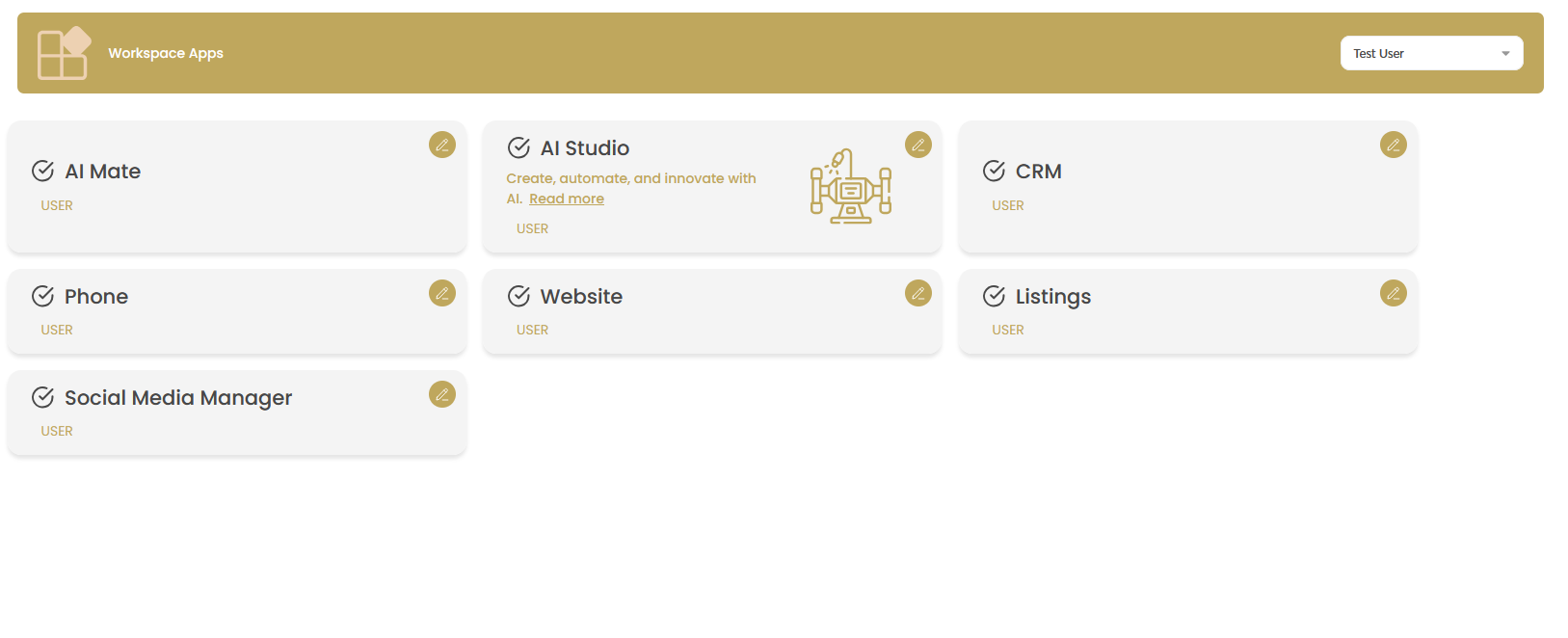
The Workspace Apps interface provides a comprehensive view of all available applications in your Agent Teammate workspace, along with their current status and role assignments.
Available Applications
Access App Management
Navigate to Workspace Admin in the sidebar and select Apps to view the Workspace Apps dashboard.
Review Application Grid
The app management interface displays all workspace applications in a grid format, showing:
- Application Name: The name of each application (AI Mate, AI Studio, CRM, etc.)
- Description: Brief description of the app's functionality
- Role Assignment: Which roles currently have access (USER, ADMINISTRATOR)
- Edit Controls: Configuration options for each application
Application Catalog
Your workspace includes the following core applications:
| Application | Description | Default Access |
|---|---|---|
| AI Mate | AI assistant and automation features | USER role access |
| AI Studio | Create, automate, and innovate with AI | USER role access |
| CRM | Customer relationship management system | USER role access |
| Phone | Communication and calling features | USER role access |
| Website | Website management and editing tools | USER role access |
| Listings | Property and listing management | USER role access |
| Social Media Manager | Social media publishing and management | USER role access |
App Management Tips
- Role-Based Access: Applications are assigned to specific roles rather than individual users
- Edit Controls: Use the edit button (pencil icon) to modify app settings
- Visual Status: Icons and descriptions help identify each application quickly
- Centralized Control: All app permissions are managed from this single interface
Configuring Application Settings
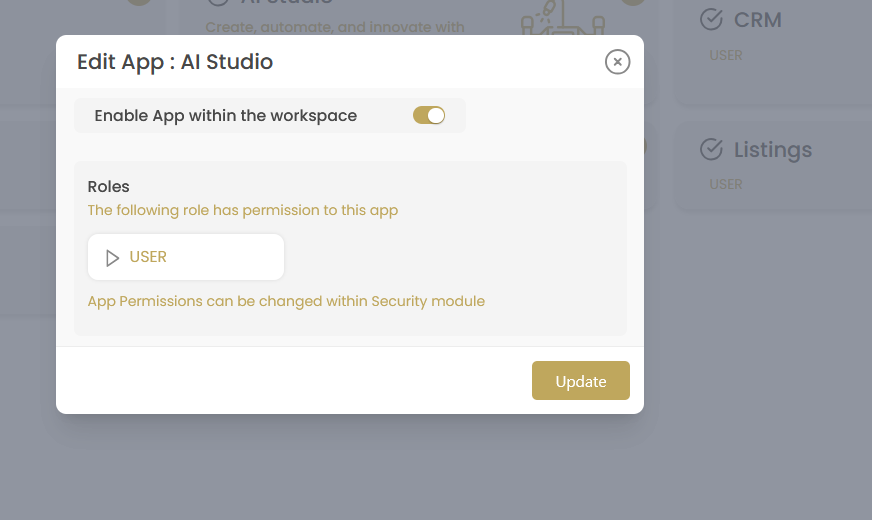
Each application can be individually configured to control access, permissions, and workspace-wide availability through the Edit App interface.
Editing Application Configuration
Select Application to Edit
Click the edit button on any application card to open the configuration dialog.
Enable/Disable Application
Use the "Enable App within the workspace" toggle to control application availability:
- Enabled (ON): Application is available to assigned roles
- Disabled (OFF): Application is hidden from all users regardless of role
Configure Role Permissions
Review and modify which roles have access to the application:
- Current Permissions: View roles that currently have access
- Role Changes: Add or remove role permissions as needed
- Security Module: Note that detailed permissions can be changed in the Security module
Save Configuration
Click to apply your changes to the application settings.
Application Configuration Options
| Setting | Description | Impact |
|---|---|---|
| Enable App Toggle | Controls workspace-wide app availability | When disabled, app is hidden from all users |
| Role Permissions | Shows which roles can access the application | Users with these roles can see and use the app |
| Security Module Link | Reference to advanced permission controls | Detailed permissions managed in Security settings |
Role-Based Application Access
Understanding how roles interact with application permissions is crucial for maintaining proper access control and security within your workspace.
Role Assignment Strategy
Best Practices for Role Management
- Principle of Least Privilege: Grant only the minimum app access needed for each role
- Role Consistency: Ensure similar job functions have consistent app access
- Regular Reviews: Periodically audit role assignments and app permissions
- Documentation: Maintain records of why specific roles have access to certain apps
Application Access Hierarchy
How different roles typically interact with applications:
Administrator Role
Administrators typically have access to:
- All workspace applications by default
- App management and configuration controls
- User assignment and permission management
- Advanced features within each application
Standard User Role
Standard users receive access to:
- Core business applications (CRM, Website, etc.)
- Communication tools (Phone, Social Media Manager)
- AI-powered features (AI Mate, AI Studio)
- Basic functionality within assigned applications
Custom Roles
Custom roles can be configured with:
- Specific application combinations based on job function
- Limited or enhanced access to certain features
- Department-specific application portfolios
- Temporary or project-based access permissions
Application Status Management
Control the availability of applications across your workspace with enable/disable functionality and status monitoring.
Application States
| Status | Description | User Impact |
|---|---|---|
| Enabled | Application is active and available | Users with appropriate roles can access and use the app |
| Disabled | Application is hidden workspace-wide | App is not visible to any users, regardless of role |
| Role-Restricted | Application available only to specific roles | Only users with assigned roles can see and use the app |
Managing Application Availability
Important Considerations
- User Impact: Disabling apps affects all users immediately
- Data Preservation: Disabling apps doesn't delete user data
- Licensing: Consider licensing implications when enabling/disabling apps
- Dependencies: Some apps may depend on others for full functionality
- Communication: Notify users before making significant app changes
Application Usage Monitoring
Track application usage and optimize your workspace configuration based on actual user engagement and business needs.
Usage Analytics
Key Metrics to Monitor
- Application Adoption: Which apps are most/least used by your team
- Role-Based Usage: How different roles interact with various applications
- Feature Utilization: Which application features are being leveraged
- User Engagement: Frequency and duration of app usage
- Access Patterns: Peak usage times and workflow patterns
Optimization Strategies
Use usage data to improve your workspace configuration:
- Remove Unused Apps: Disable applications with low adoption rates
- Expand Successful Apps: Provide broader access to highly-used applications
- Training Opportunities: Identify apps that need user education
- Role Adjustments: Modify role assignments based on actual usage patterns
Troubleshooting Common Issues
Application Management Problems
| Issue | Possible Cause | Solution |
|---|---|---|
| User cannot see an application | App disabled or role lacks permissions | Check app status and verify user's role has access |
| App settings won't save | Insufficient permissions or system error | Ensure admin privileges and try refreshing the page |
| All users lost app access | Application was disabled workspace-wide | Re-enable the application in the Apps management section |
| Role changes not reflected | Cache or session needs refresh | Ask users to log out and log back in |
| Edit button not working | Browser compatibility or JavaScript issues | Try a different browser or clear browser cache |
Advanced App Management
Integration with Security Module
For more granular control over application permissions:
Access Security Settings
Navigate to the Security section in Workspace Admin for advanced permission controls.
Configure Detailed Permissions
Set specific feature-level permissions within applications, not just basic access control.
Implement Custom Policies
Create custom security policies that govern how applications can be used within your workspace.